Mccoy

Overview

This course walks carriers through the Trips section of their Relay account so they are better able to manage their Amazon business. 

Time

This course will take approximately 15 minutes to complete. 

Navigating This Course

This course is mobile friendly. You can take it on your phone or on a computer. Select the cards below for tips on taking this course on your phone.

Click the magnifying glass icon (+) to zoom in and click again to return to normal size.
When you see a "CONTINUE" button, select it to unlock the next section of the course.
Rotate your phone for better access to course content.
Relay Trips

On the Trips page, your company will find all upcoming, in-transit, and historical blocks, trips, and loads. We will explore the three different tabs on the Trips page: Upcoming, In Transit, and History. We will also look at the information contained in each tab, as well as various actions you can take there.

Upcoming Tab

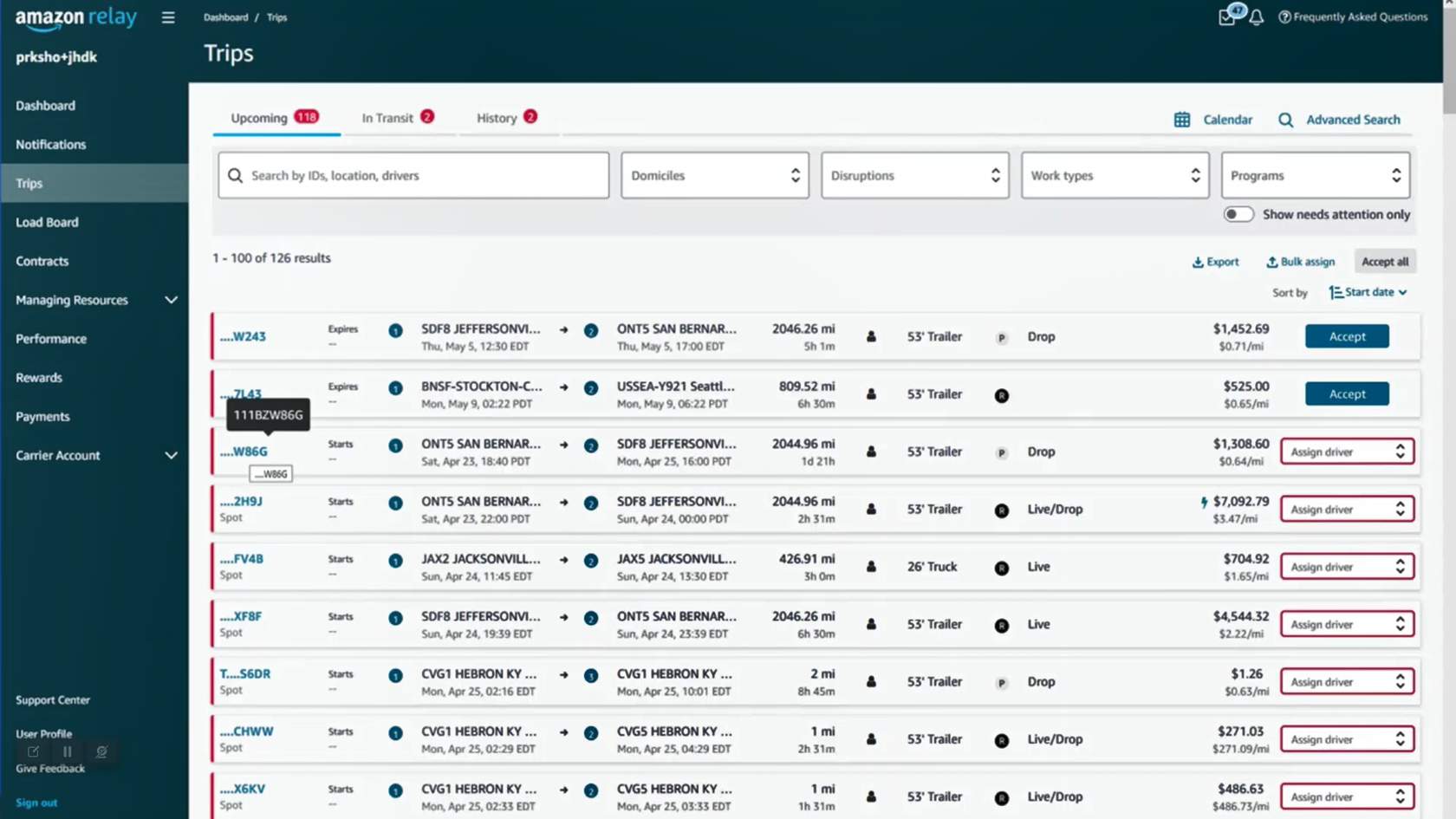
The Upcoming tab will display information about any upcoming blocks, trips, and loads.

Bulk Assign

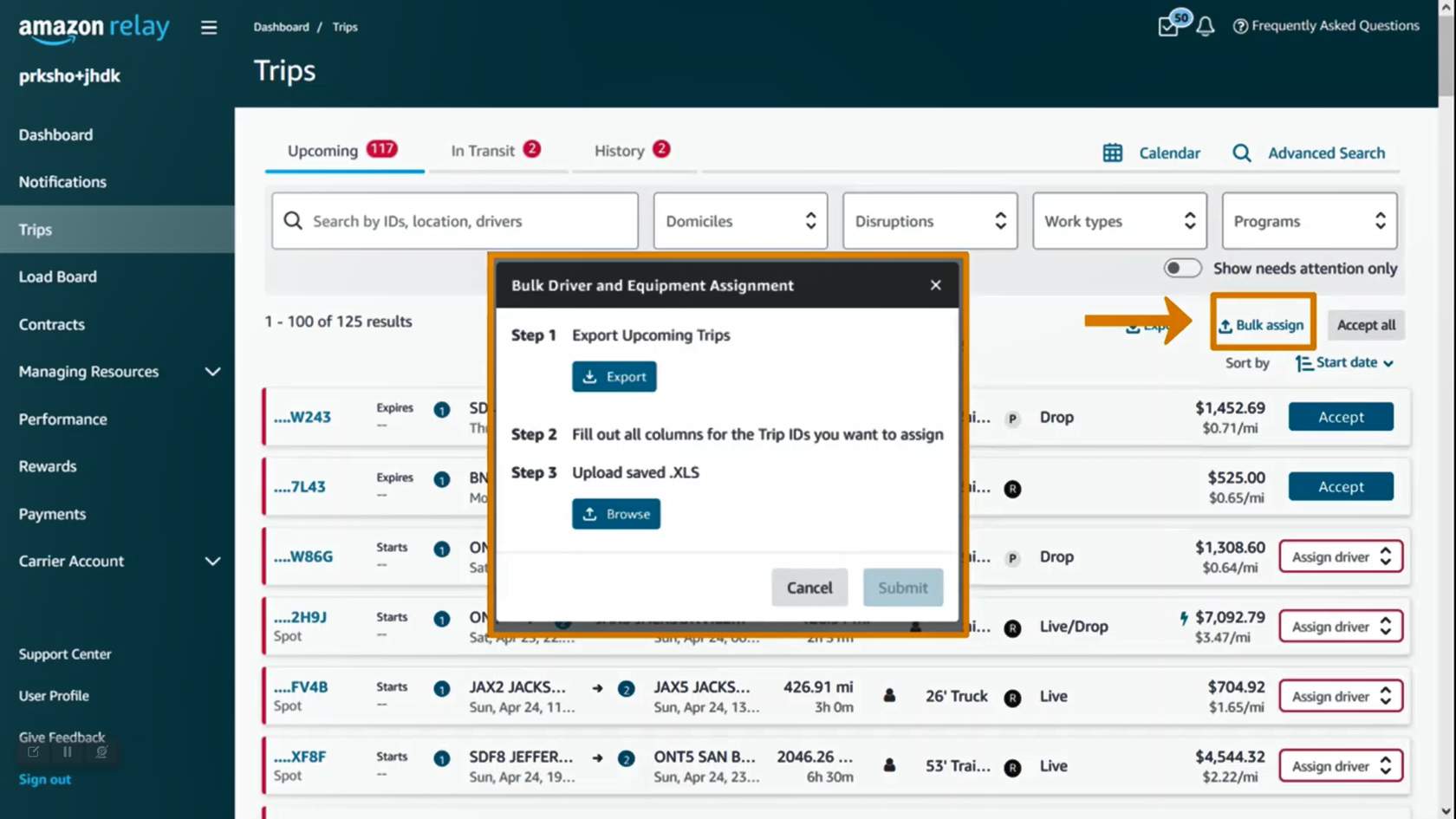
Bulk assign can be used for bulk driver and equipment assignment. To do so, click on Bulk assign in the top right. Follow the steps on the pop up window to export upcoming trips and upload the completed document.

Note: In the event your company needs to reject work, please do so as soon as possible. A reason code will need to be selected from a dropdown menu. Rejecting work may negatively impact your company’s performance score.

In Transit Tab

When a driver checks into their first stop, upcoming work moves to in transit.

For block work, it is possible that when the block starts, work is still being added. This is indicated by an empty destination circle.

The number below the destination circle indicates the number of stops. The first stop will always be the origin and the last stop will always be the final destination.
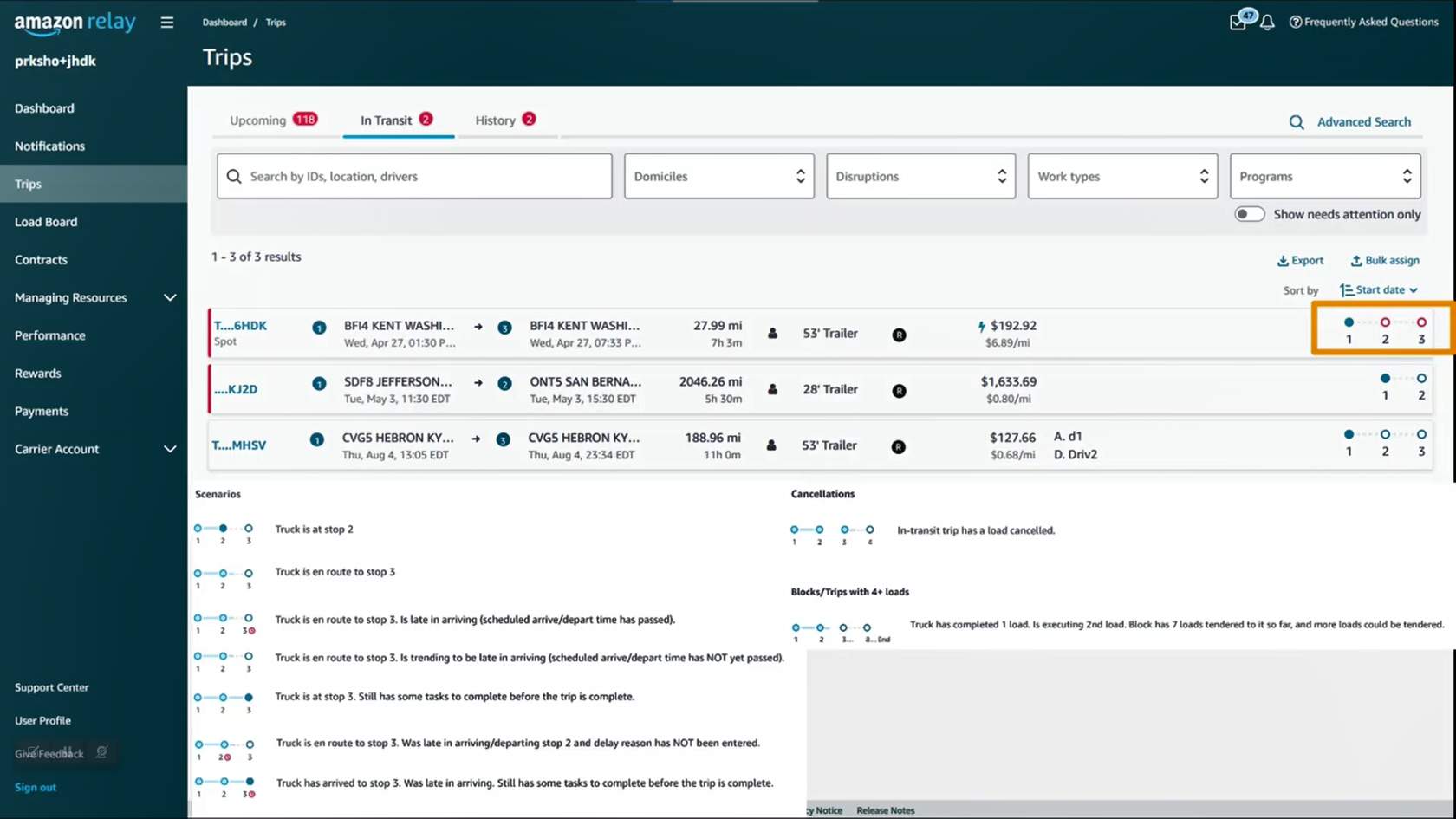
Progress bars will show status as loads are being executed. View below to learn more about different progress bars.

Electronic Bill of Lading

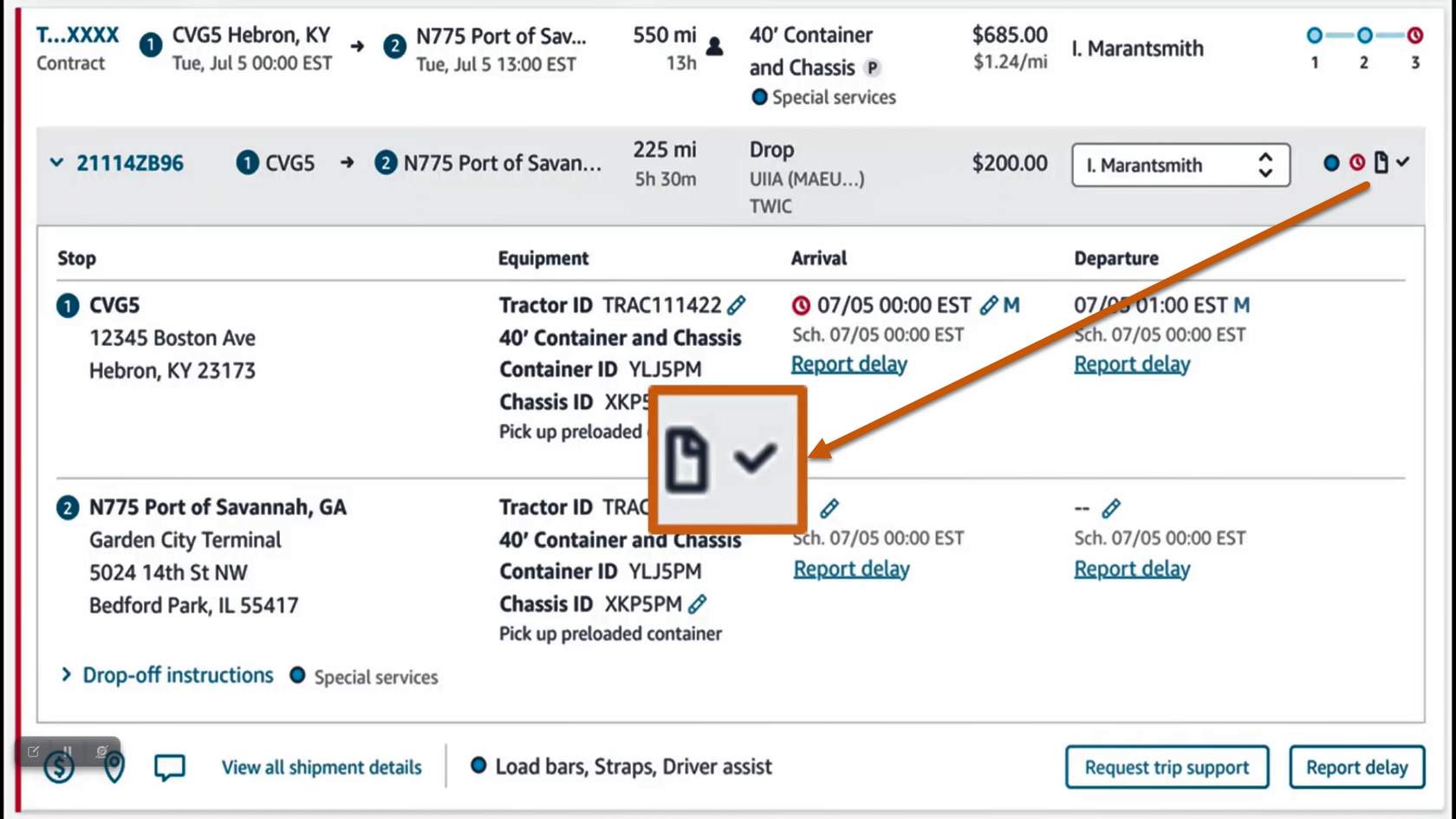
Some locations provide electronic bill of lading (eBOL).

Legs with eBOL will show a blue piece of paper that can be clicked on to view the BOL.

History Tab

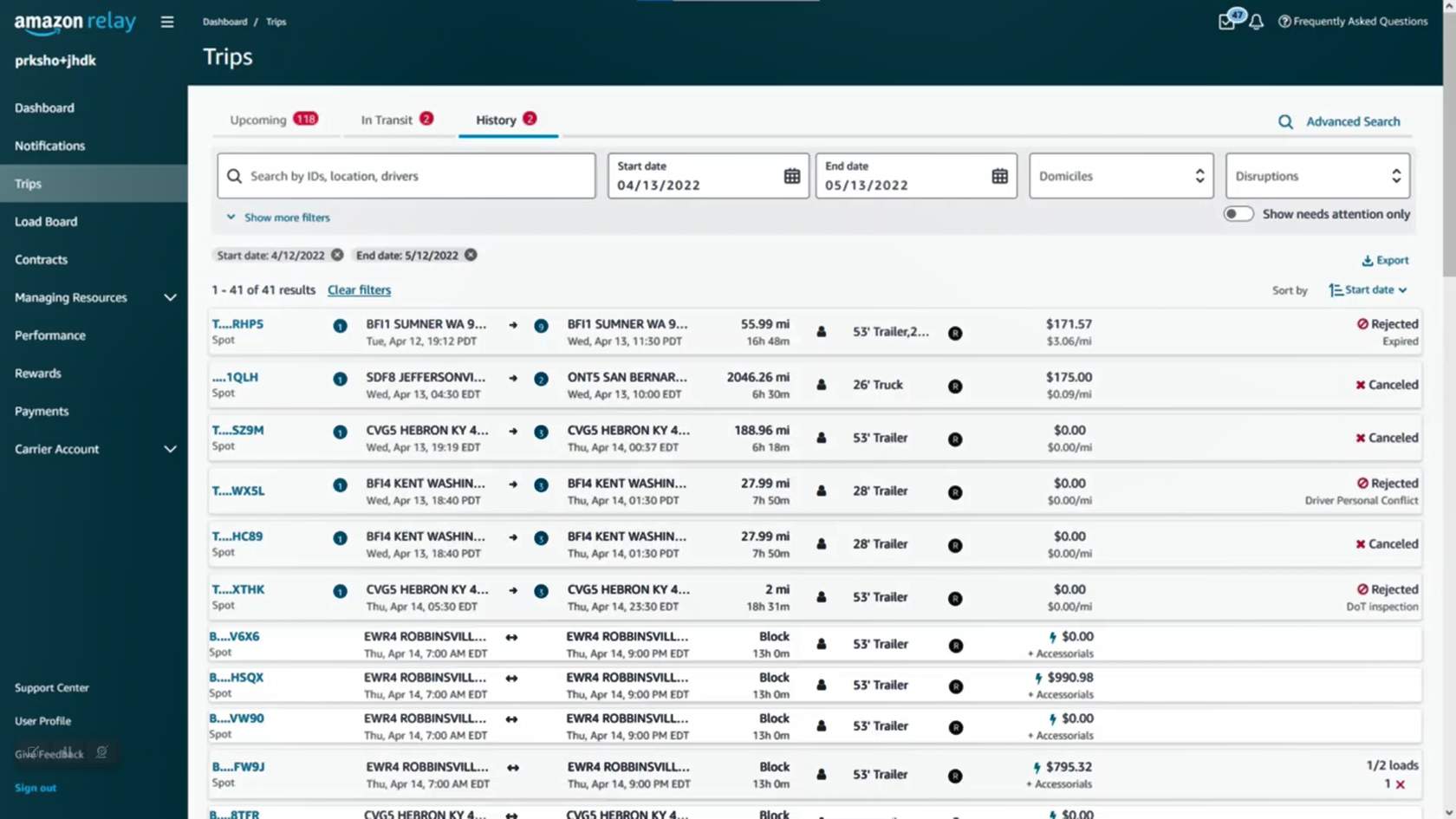
All completed, canceled and rejected work will appear in the history tab. Once work moves to the history tab, it will be processed for payment.

History Tab

Knowledge Check ✅

Take a moment to reflect on what you’ve learned so far.

Press each flashcard below to review details about the Trips page, such as functions and icons, before continuing to the quiz.

Trips page

Click to flip Your company will find all Upcoming, In Transit, and Historical Blocks, Trips, and Loads.

Driver Assignments

Only drivers with qualifications/ classifications appropriate for the equipment type of the load/route/VRID can be assigned.

Prefix ID

Will indicate if the work is a Block, Trip, or Load.

Bulk assign

Can be used to assign multiple drivers and equipment at the same time.
A dark blue dot indicates an on-time check-in. A turquoise bar indicates a completed leg.
An orange clock indicates a delay. The carriers will need to report the delay.
An orange X indicates a canceled leg.
A grey dotted line indicates work is still being assigned.