
Your company can secure work in advance via contracts and with benefits to fleet operations, including:
- Improved driver retention.
- Efficiently managing truck maintenance scheduling.
- Growing fleet operations through contracted work.
- Maximizing the use of your company’s driver-truck mix.

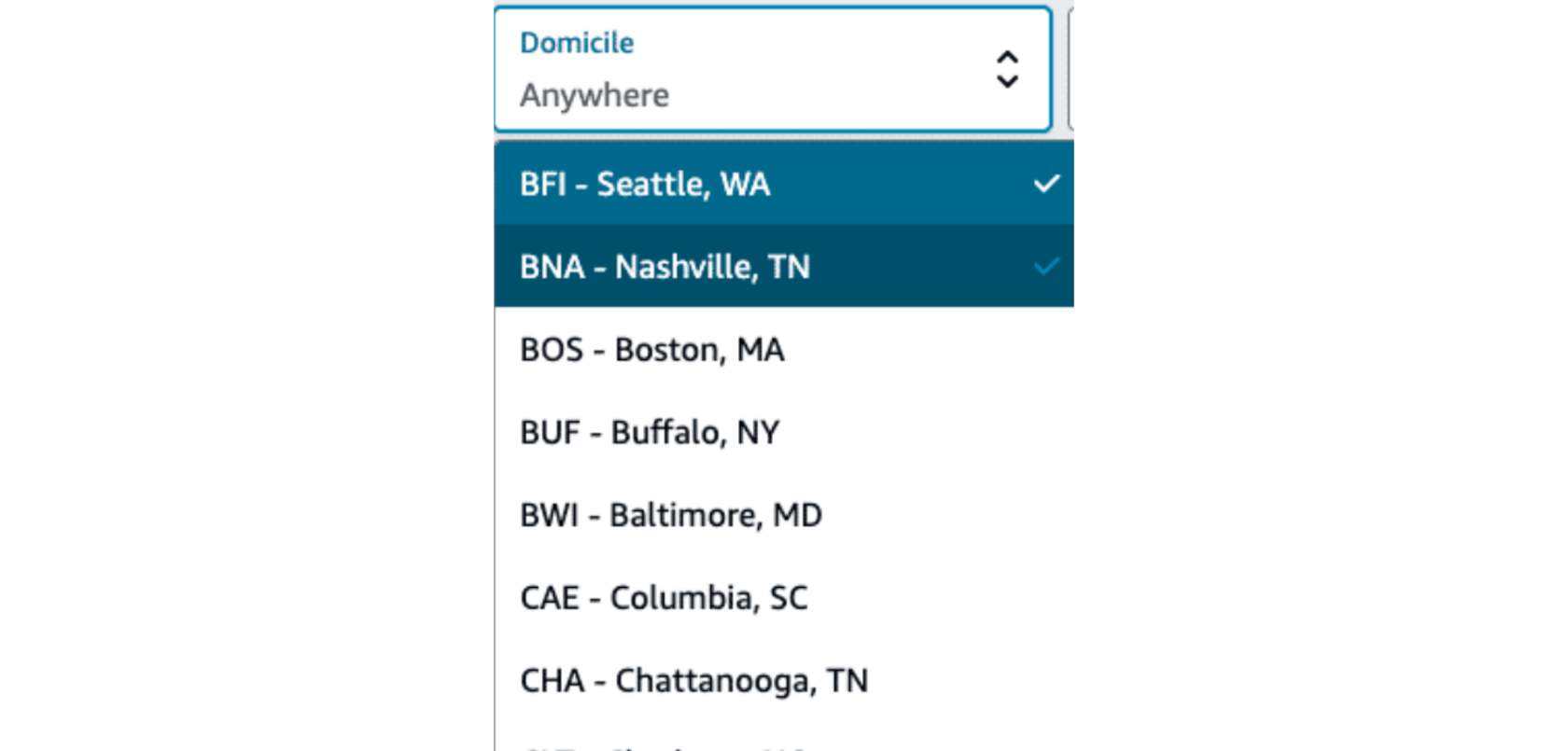
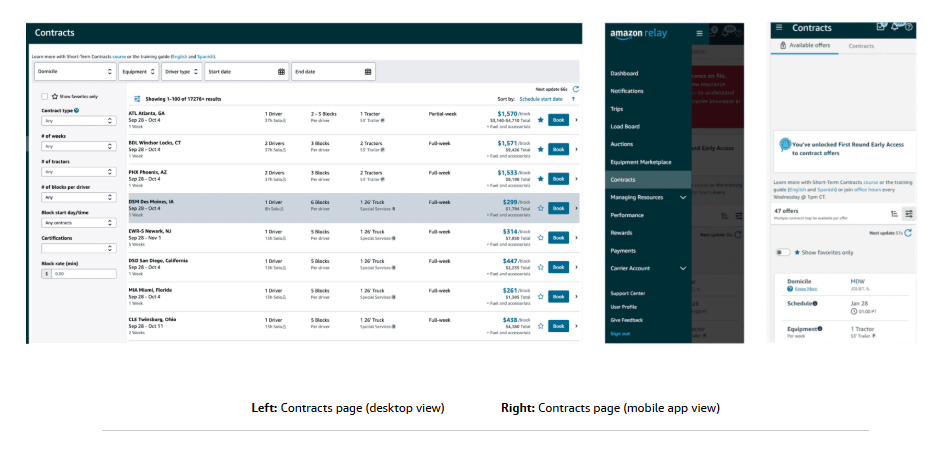
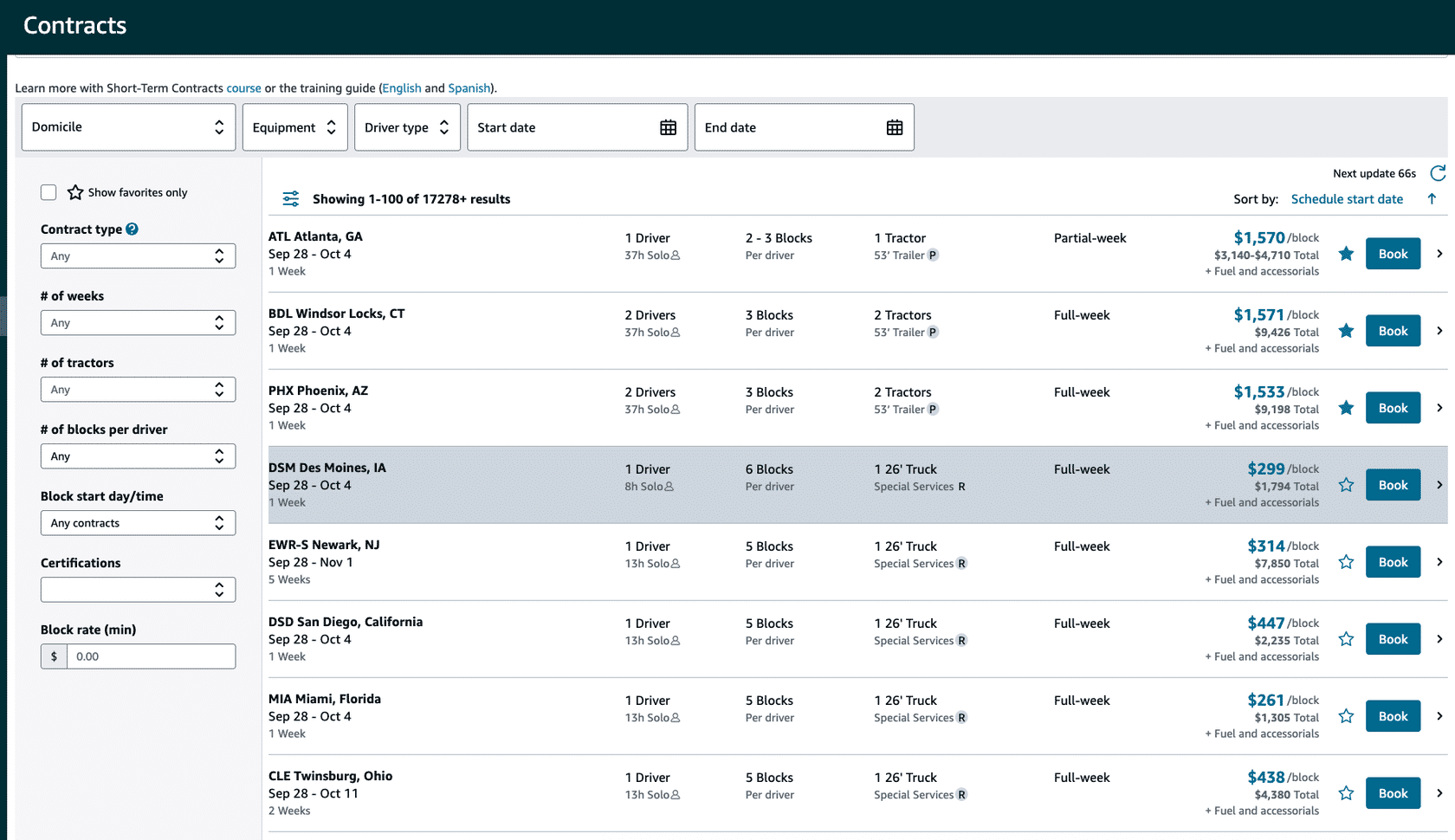
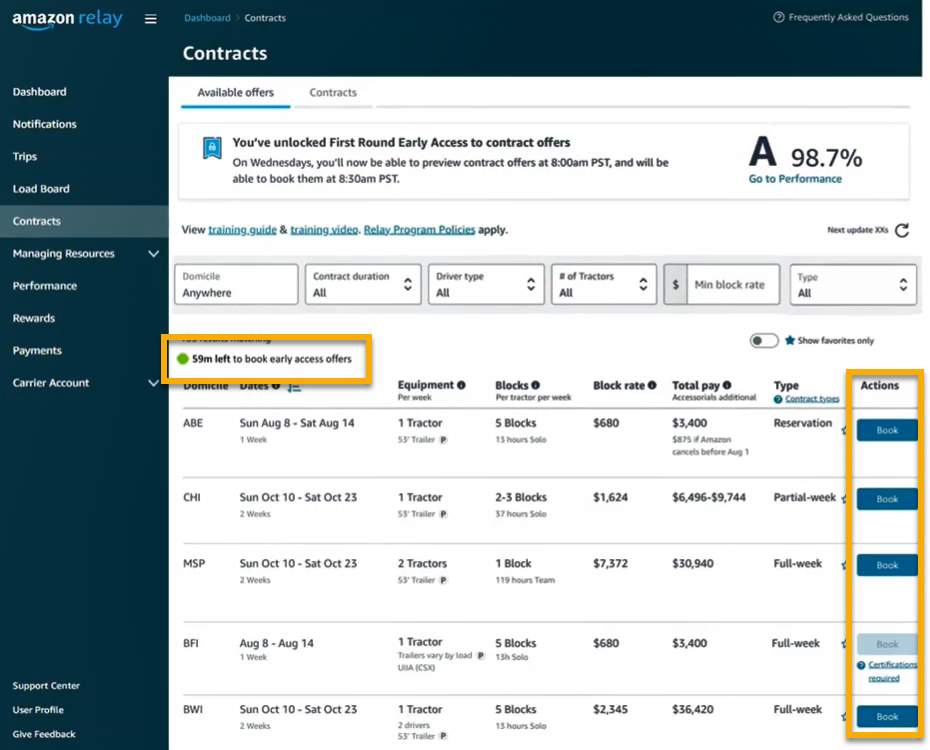
Starting and ending location of work. Blocks start and end at the same domicile. Be aware that work may go outside of the starting and ending domicile. The domicile doesn’t limit where the trip may travel. Standby contracts may show city within domicile around which work may start.
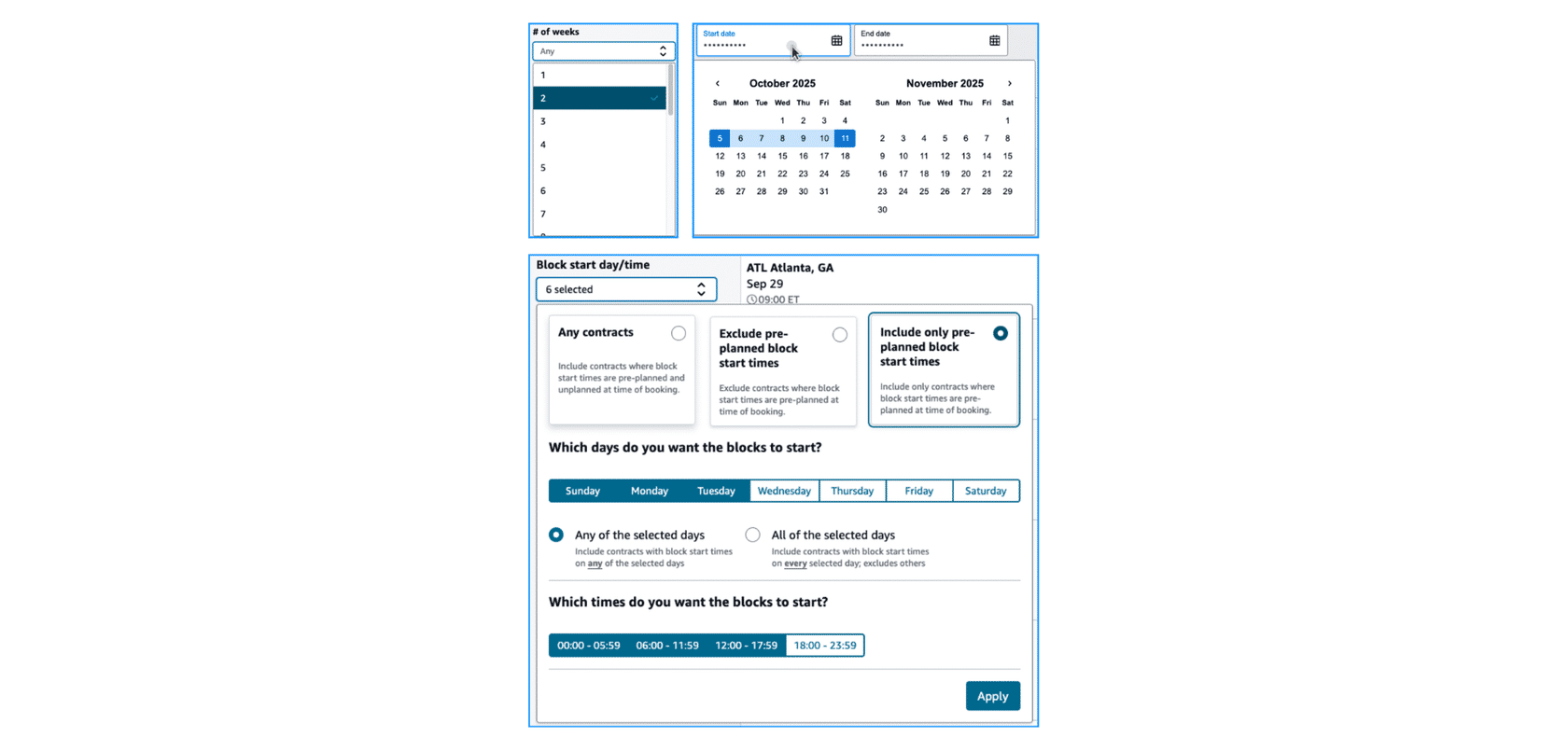
Period over which work blocks start. A block can start on or towards the end of the execution week of a contract, as well as end outside of the end date of the contract. Some contracts may show exact starting time and day when the blocks will start in the week.
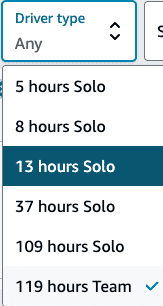
The number of drivers needed to execute the contract per week along with duration of each block of work, and drivers required (Solo or Team).
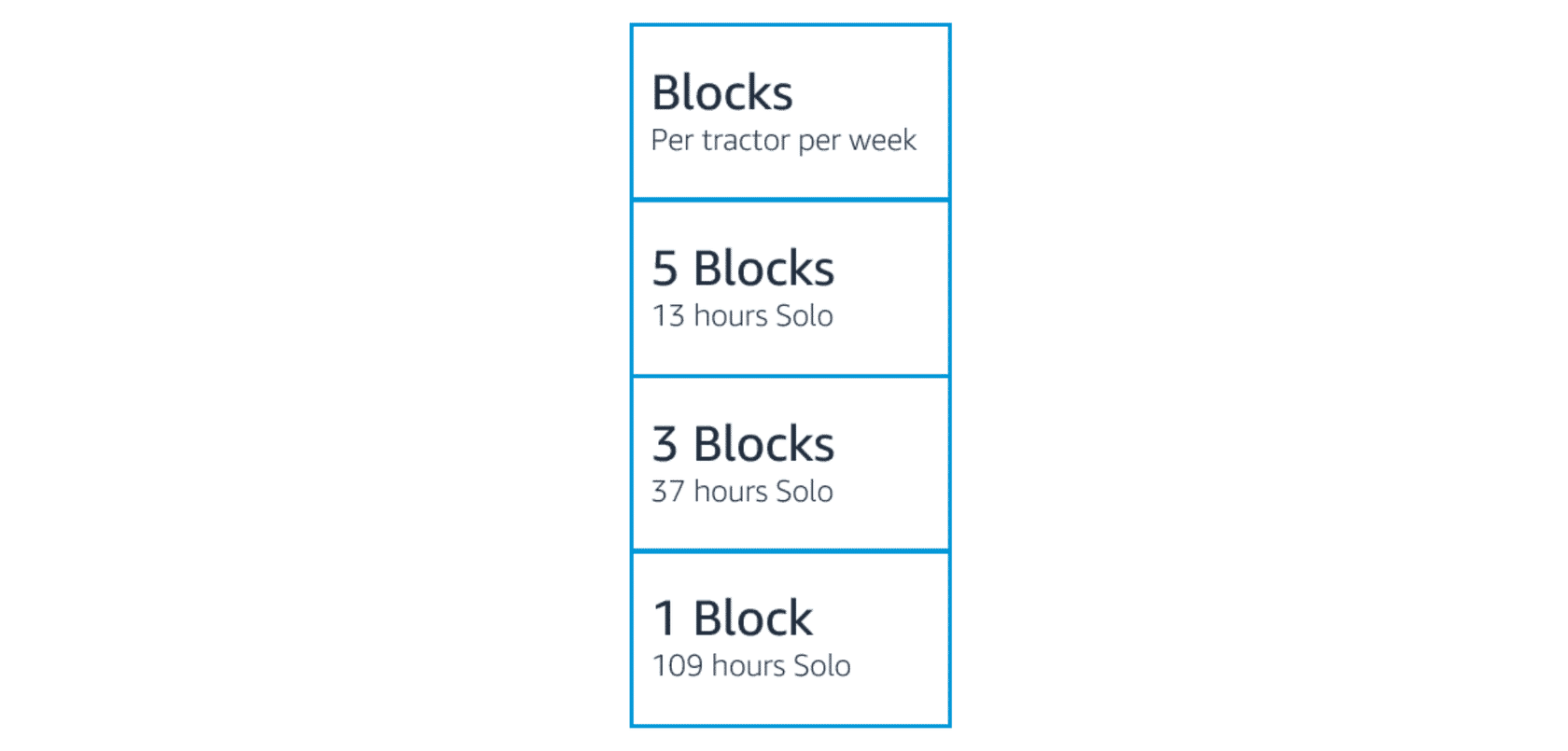
Blocks are pre-planned “blocks of time” in which one or more trips of work is assigned. Each contract will consist of number of blocks per week, duration of each block of work, and drivers required (Solo or Team).
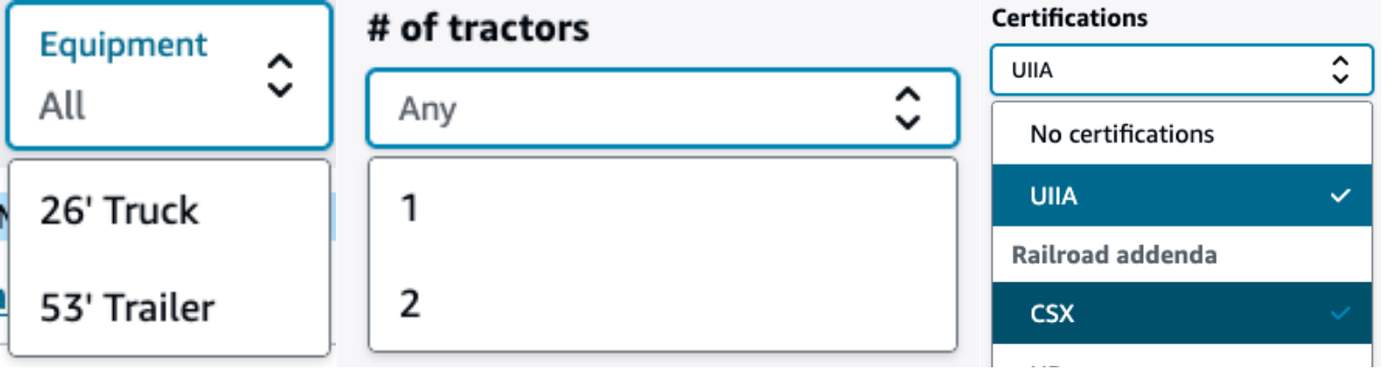
Number of tractors required, trailer type. Symbol ‘P’ means “Trailer provided by Amazon” and ‘R’ means “special requirements” with 26’ Box Trucks.
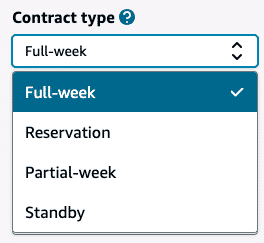
Contract type (i.e. Full-Week, Partial-Week, Reservation, Standby).
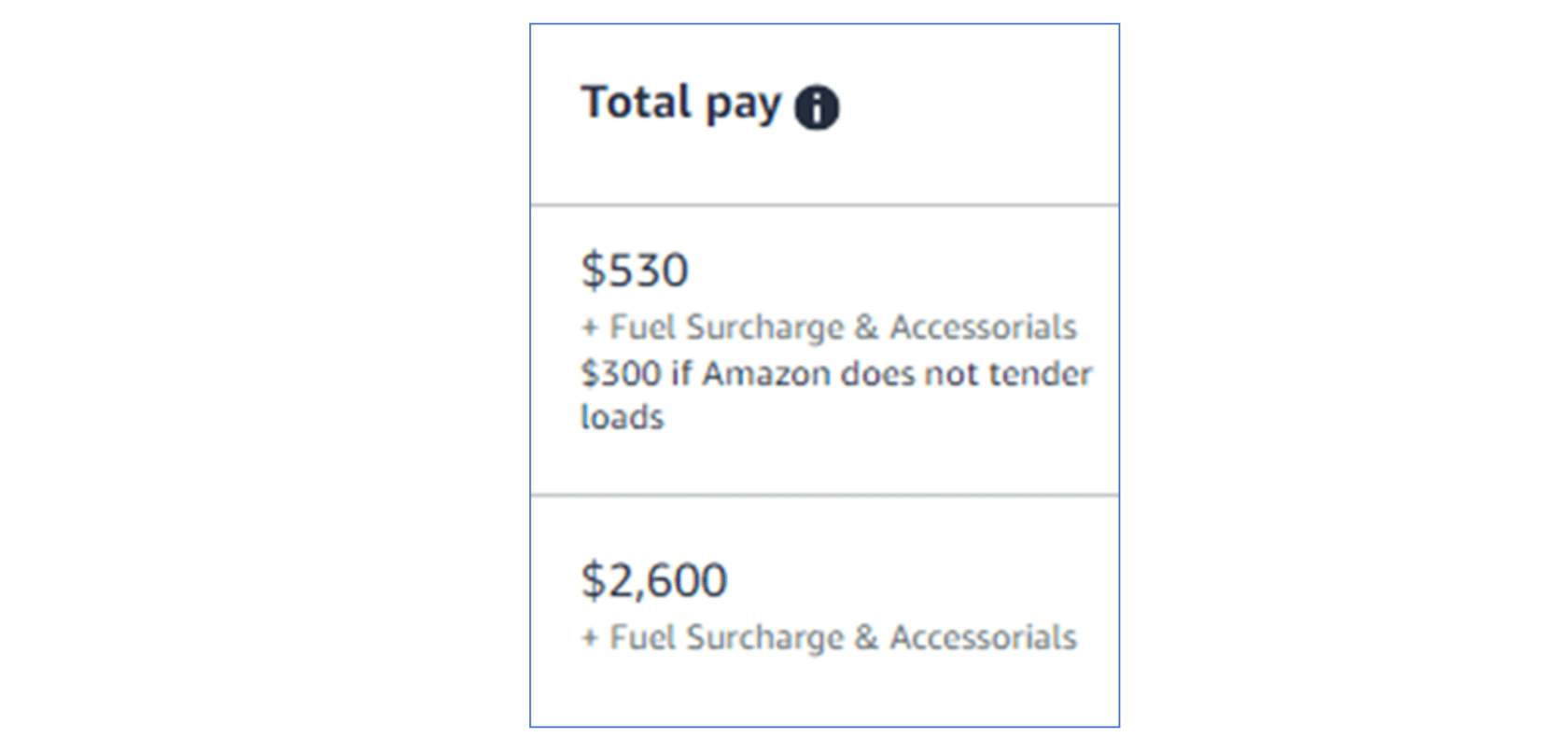
Value of contract based on total weeks, blocks, tractors, and block rate – the rate paid per executed block irrespective of the length or number of trips or tours tendered during that block.
Fuel surcharge, tolls, and accessorial charges are not included in the contract total and will be added in the invoice as per the tendered work.
Please note that some contracts have a conditional payout.
Full-Week Contracts
Partial-Week Contracts
Reservation Contracts
Standby Contracts
Full-Week Contracts
5 Blocks per week provided on 13 hour Solo (i.e. Solo 1) contracts.
3 Blocks per week provided on 37 hour Solo (i.e. Solo 2) contracts.
1 Block per week provided on 109 hour Solo (i.e. Solo 5) contracts.
1 Block per week provided on 119 hour team contracts.
NOTE: Some special contracts show the exact days of the week and starting time of the blocks upfront.

Partial-Week Contracts
Blocks tendered per week may fall within min/max range indicated on the contract (e.g. 3-5 Blocks).
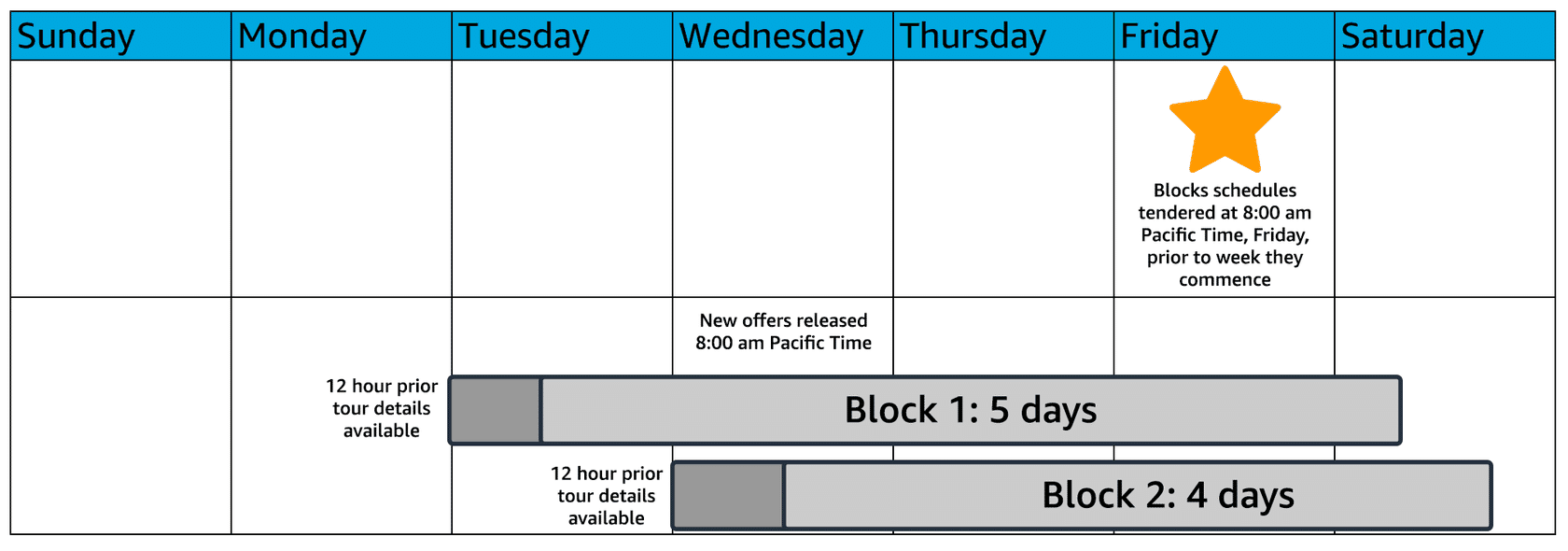
Actual Blocks tendered per week are confirmed with block schedule on the Friday of week prior to execution.
NOTE: Some special contracts show the exact days of the week and starting time of the blocks upfront.

Reservation Contracts
These may be cancelled by Amazon up to the specified cancellation date on the contract. Cancellation fee paid out to carrier if Reservation is cancelled on or before the specific date.

Standby Contracts
A roundtrip contract lists the start day, time, and city, but isn’t always scheduled. Block details are sent to your company on Friday evenings, for blocks that can start as soon as the upcoming Sunday. You’ll have 1 hour to accept or reject the block. Doing nothing automatically accepts the block, and any rejections will have a performance score impact. If no blocks are sent to you, you’ll be paid the forfeiture rate.

53' Trailer Provided
Domestic 53' Container Drayage
26' Box Truck
53' Trailer Provided
Standard 53′ trailer provided by Amazon. Carrier has to provide the driver and the tractor only.

Domestic 53' Container Drayage
Intermodal chassis and rail container provided by Amazon.
UIIA certification for application rail line(s) required to book and execute these contracts.
Trailer types (e.g. trailer or container on chassis) hauled may vary by load. Equipment details confirmed at time of Tour tender.

26' Box Truck
Carrier is required to bring 26’ Box Trucks with E-straps and pallet jacks.

13-Hour Solo
37-Hour Solo
109-Hour Solo
119-Hour Team
13-Hour Solo
13-hour solo requires one driver and one tractor, and involves that driver working up to 13 hours per block.

37-Hour Solo
37-hour solo requires one driver and one tractor, and involves that driver working time blocks of up to 37 hours. This will include up to 13.5 hours of on-duty activity, a ten hour off duty break, and another on-duty segment of work for up to 13.5 hours.

109-Hour Solo
109-hour solo requires one driver and one tractor, and involves that driver working up to 109 hours per block. This will include up to 13.5 hours of on-duty activity, a ten hour off duty break, and a following on-duty segment of work for up to 13.5 hours, repeated for the duration of the Block (5 days).
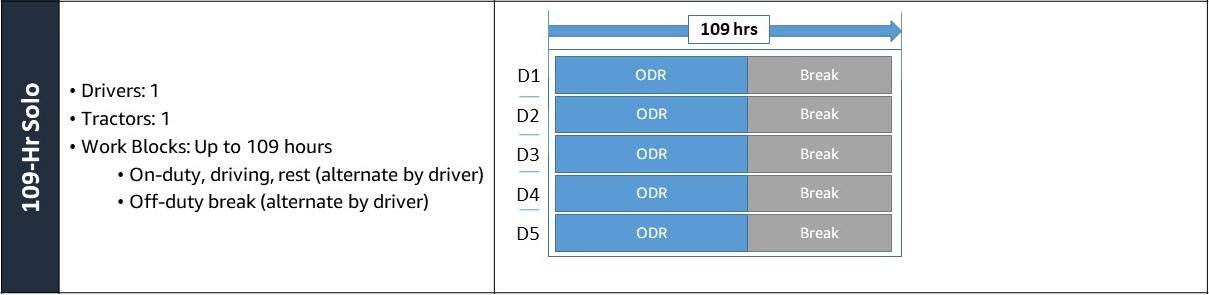
119-Hour Team
119-hour or team requires two drivers and one tractor, and involves those two drivers working a time block up to 119 hours by alternating on duty driving and rest with off-duty breaks.


Important Times
Available Offers Tab
Preview Window
Booking is Open
Important Times
Some important times to take note of:
- Most of the new contracts are published on Wednesdays
- All rounds have a 30 minute preview window before booking is enabled
- A and A+ carriers qualify for exclusive offer preview and one hour booking window with no wait
Note: Failure to meet your performance requirements may result in revocation of access to contracts and other Amazon work.
Available Offers Tab
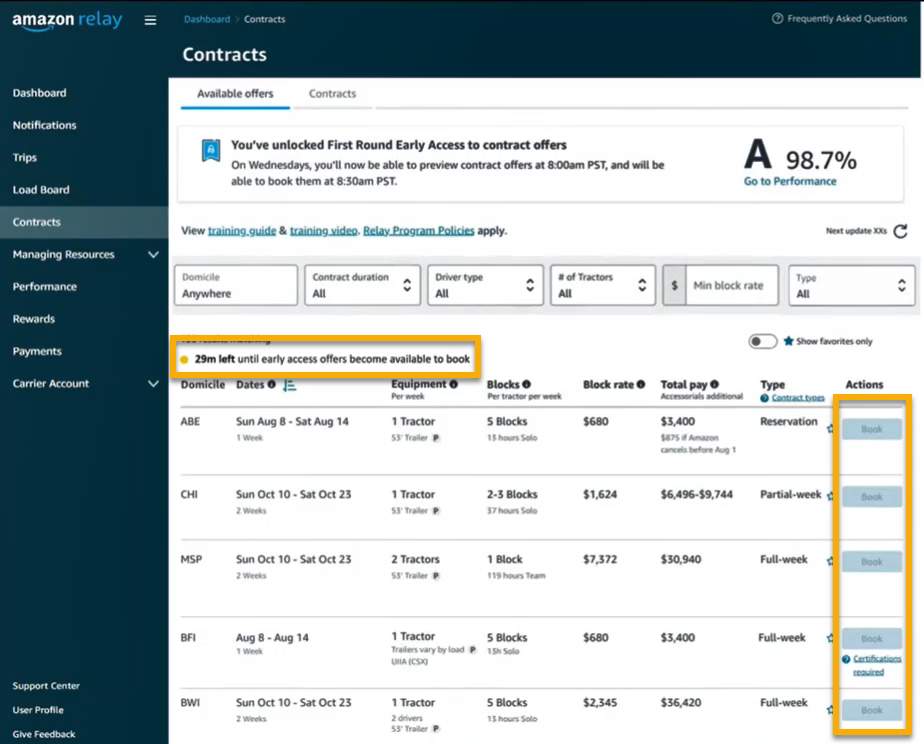
On the Available Offers tab, you’ll see the wait window if your company qualifies for early access. On Wednesday, this space will show your early access round number, as well as time to preview and book. The timer shows minutes before preview is enabled. A+ and A performance rank carriers do not have the wait period before preview.

Preview Window
The timer shows you available minutes to preview offers before booking is enabled. You can see all the offers, but the book button is disabled.
Booking is Open
When the preview timer has finished, booking becomes available. The timer will now show available minutes to book early access offers based on your performance grade. On the booking window, the book button will now be enabled.
Contract Types
Accessorial Charges
Show Favorites Only
Confirmation Message
Contract Types
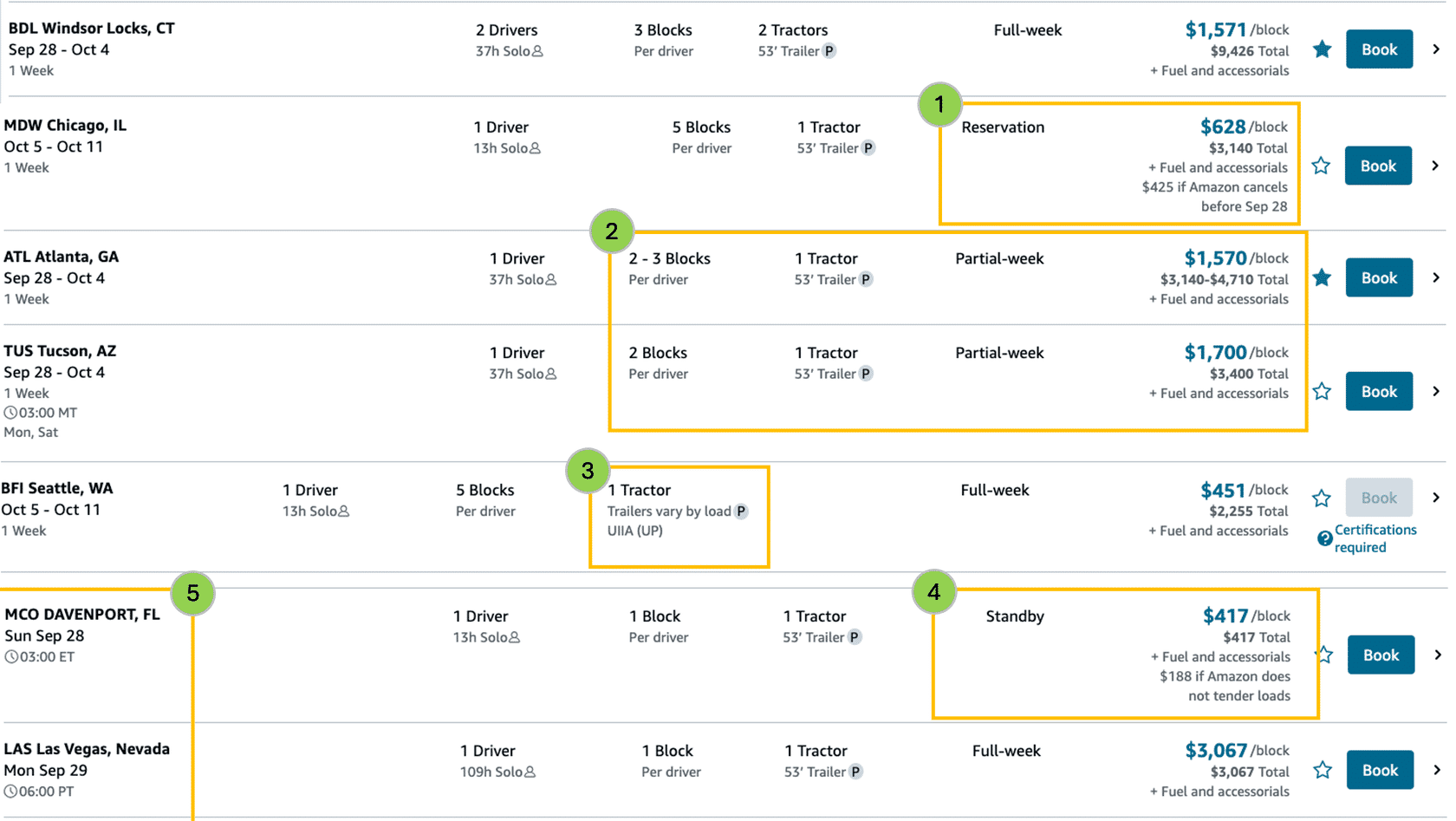
For contract types, keep the following in mind.
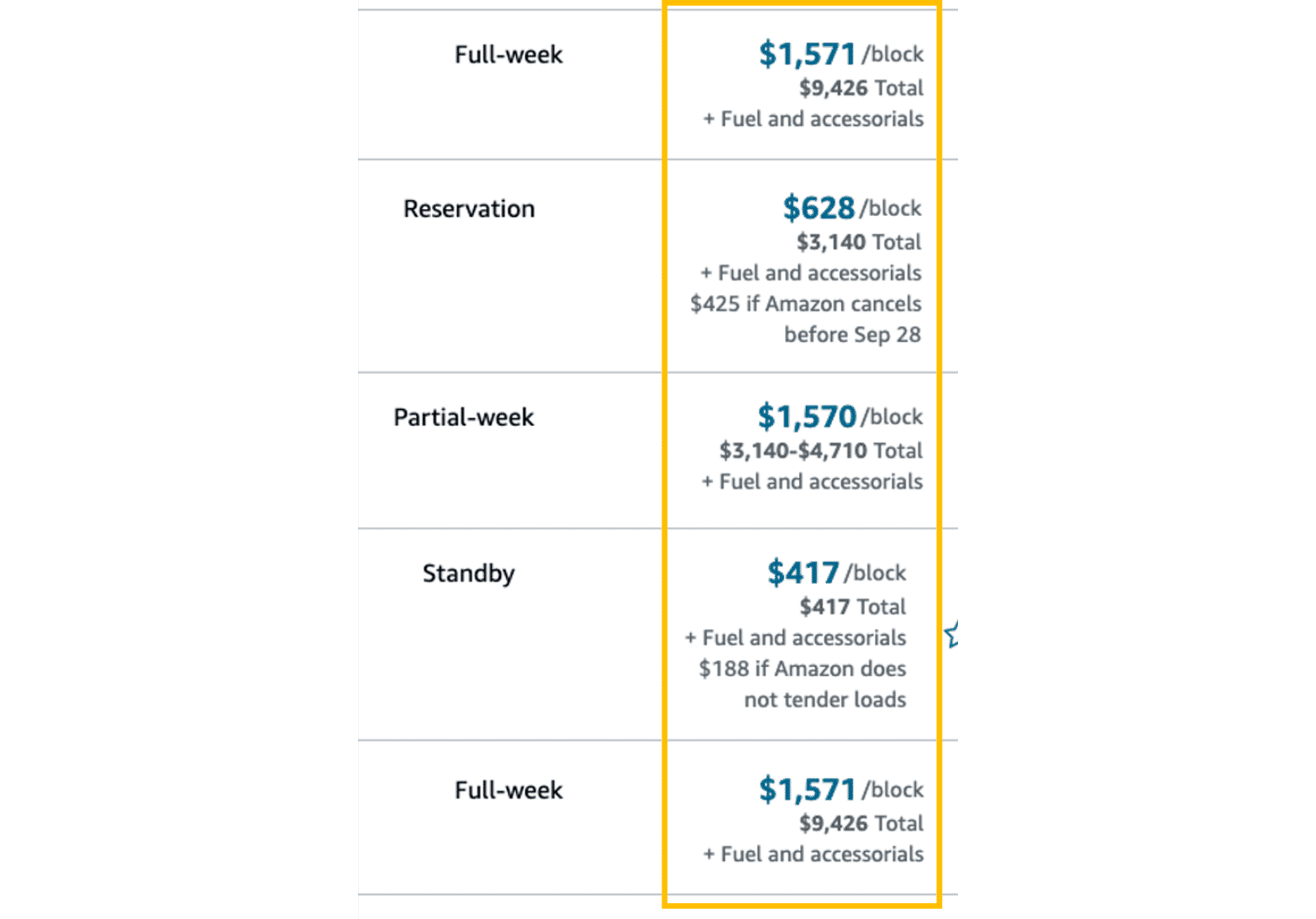
1. Reservations: Fee payout for Reservation if cancelled by Amazon in Total Pay column.
2. Partial-Week Contracts: Contracts where the actual blocks/weeks tendered is less than Full-Week. Number of blocks may be fixed or fall within the min/max range indicated on the contract (e.g. 3-5 blocks).
3. Domestic 53′ Container Drayage: Domestic drayage contracts along with rail requirement in Equipment column.
4. Standby Contracts: Forfeiture payout in Total Pay if no trip or load is tendered by Amazon during contract duration.
5. Some contracts show the start days of the week and start time of the Blocks upfront.
Accessorial Charges
Applicable accessorial charges & fuel surcharge are additional and will be applied to weekly invoices following completion of work. Fuel surcharges are not meant to cover fuel costs. They provide an offset to minimize the impact of fuel price fluctuations. Refer to the Fuel Surcharge page of the Amazon Relay Accessorials Table for more information.
Show Favorites Only
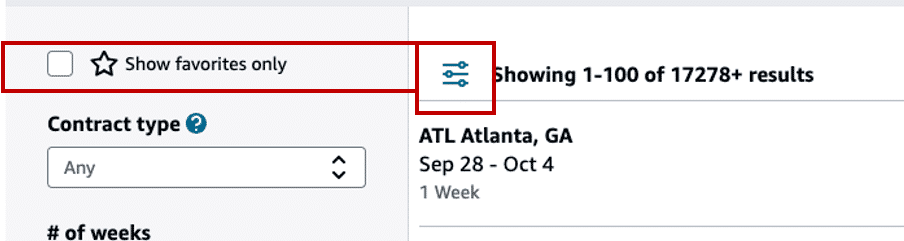
If you find an offer that you’re interested in, but not ready to book, select the star next to the Book button to add it to your favorites. You can toggle the Show favorites only option to show all your favorites at any time, but don’t wait too long to act on your favorites.
Note: Marking a contract as a “favorite” does not book or hold the contract. Favorited offers are still available to be booked by other carriers.
The favorites star will remain marked after you book the contract if additional contracts of the same type remain available. Unmark the star when you’ve booked the desired quantity to avoid overbooking contracts.
Confirmation Message
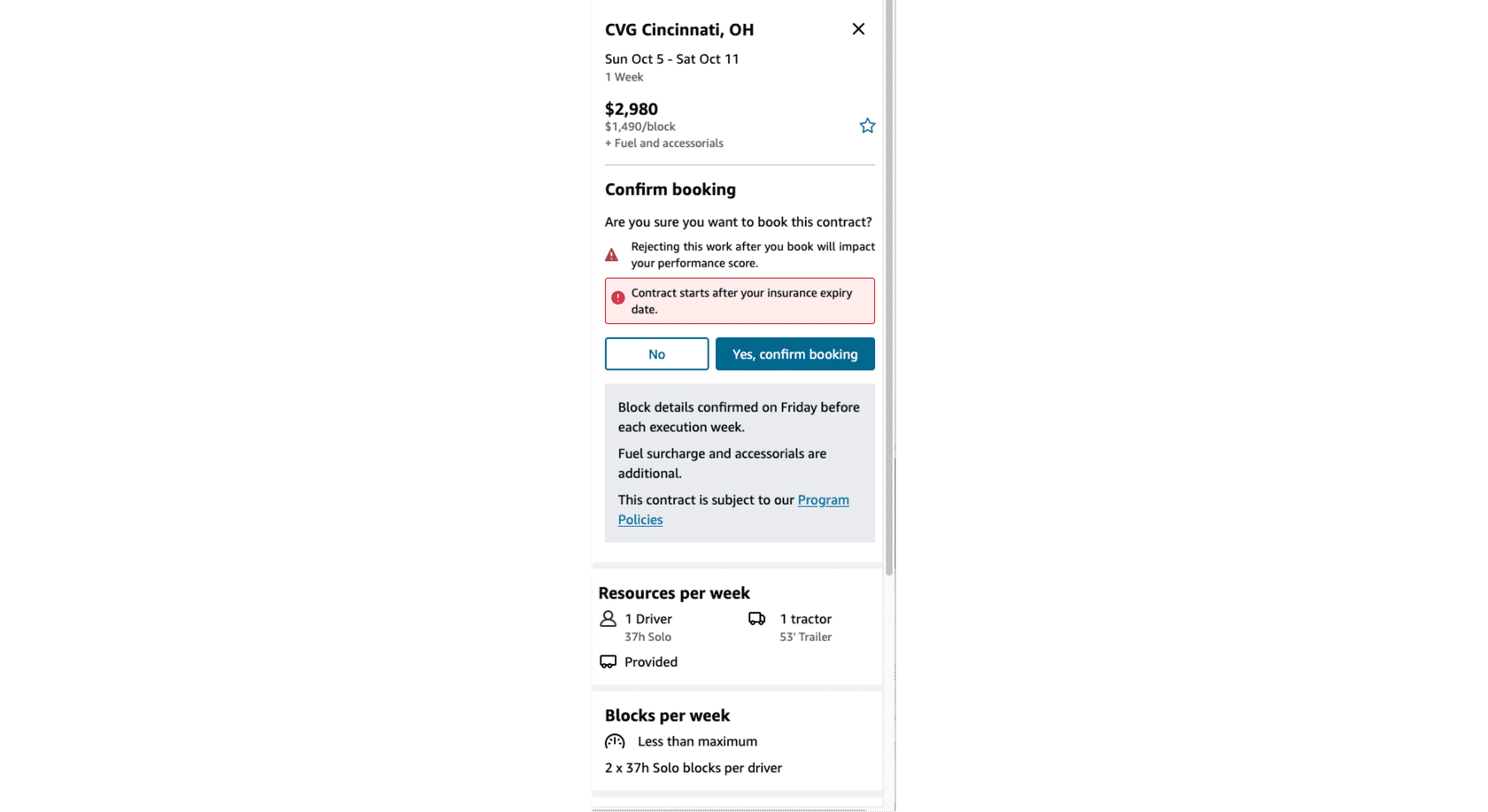
Before booking, confirm the attributes for the selected contract. Attributes vary by Contract Type and Equipment. Please ensure you read the details carefully. Once you have confirmed booking the contract, rejecting the contract can affect your performance score.

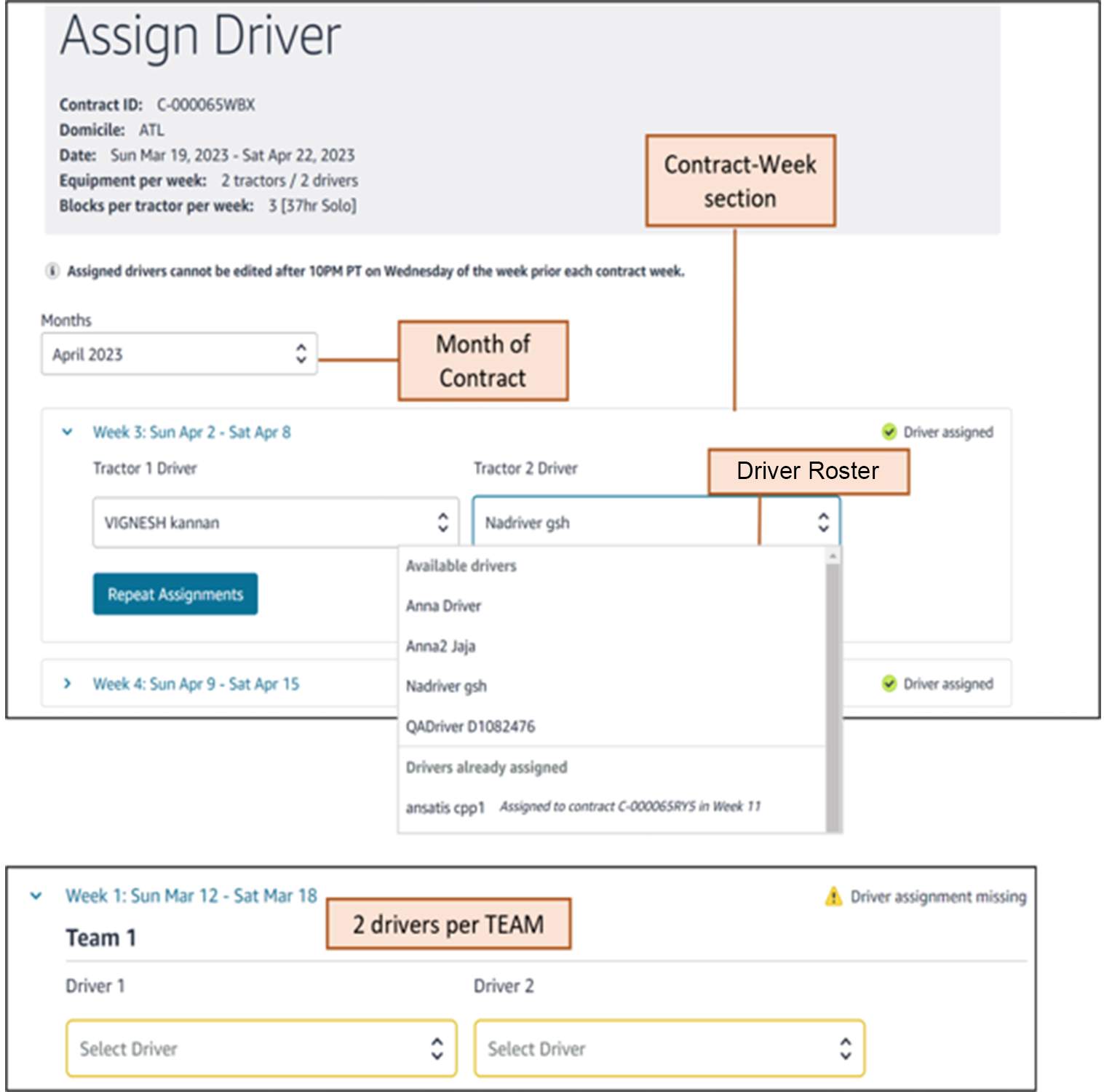
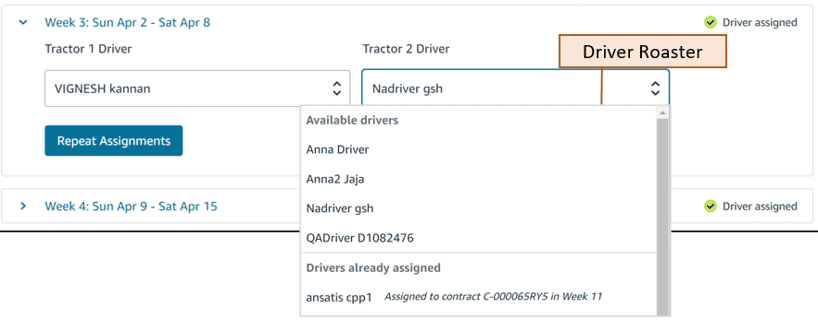
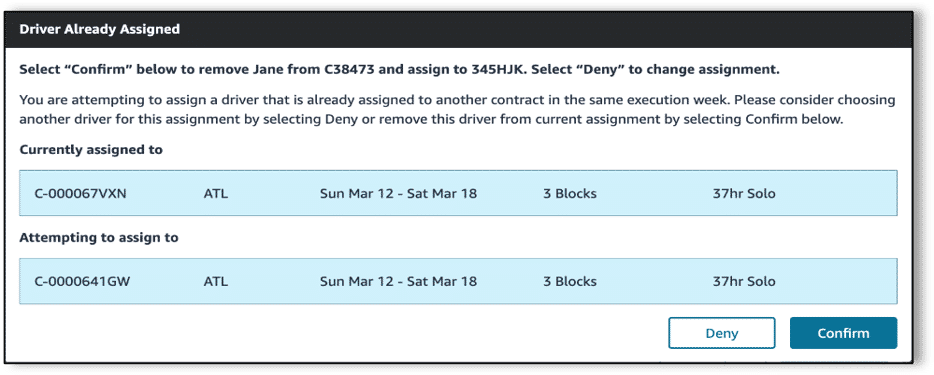
The Driver Already Assigned alert will appear if the driver is already pre-assigned to another contract in the same week.
a. Click Confirm to complete the attempted driver pre-assignment and remove the driver
from previously assigned work in that week.
b. Click Deny to cancel the pre-assignment.
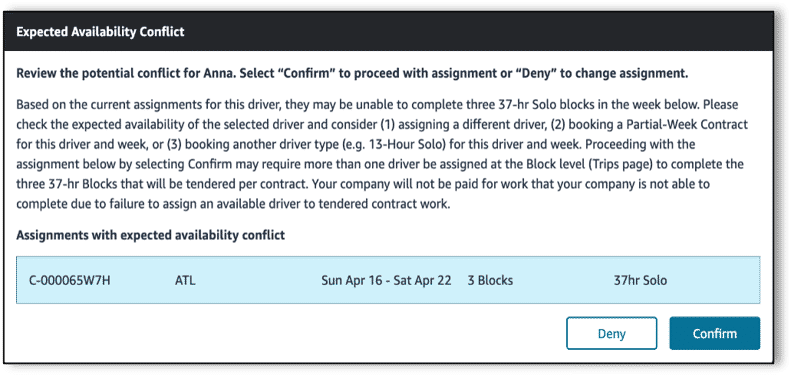
The Expected Availability Conflict alert will appear if a driver is expected to be unable to complete the contracted number blocks for a week, due to prior week pre-assignments.
a. Click Confirm to complete the pre-assignment.
b. Click Deny to cancel the pre-assignment and assign a different driver for that week
who would need a dedicated tractor to avoid overlapping blocks.
Note: Amazon will always tender three blocks of 37-hour Solo 2 work for every week of a full-week Solo 2 contract, and will remove resets between the blocks for the contract weeks where an expected availability conflict is indicated. You will never receive this conflict for any partial-week contracts or any contracts that are 13-hours Solo 1 or Team driver types. Your company will be informed at least 1 week in advance through Relay notifications. To mitigate risk of block rejection in such cases, multiple drivers may be required within the week which can be assigned at the block level on Trips page after the blocks are tendered on Friday before the contract execution week. Refer to FAQ 5 for more details.
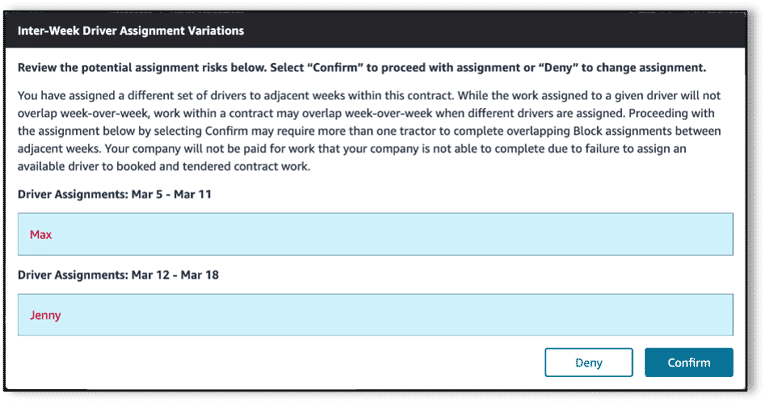
The Inter-Week Driver Variations alert will appear if your company is pre-assigning a different set of drivers to adjacent weeks within a contract:
a. Click Confirm to complete the pre-assignment.
If your company plans to use the same truck across weeks with the noted drivers, you may need to manage your assets to account for this risk of overlapping blocks week-over-week.
Alternatively, your company can keep the same driver pre-assigned week-over-week at the contract level, and make the intended driver assignment on blocks tendered to the Trips page. This will ensure no overlap.
b. Click Deny to cancel the pre-assignment.
Via Available Offers Page
Via Contracts Tab
Via Available Offers Page
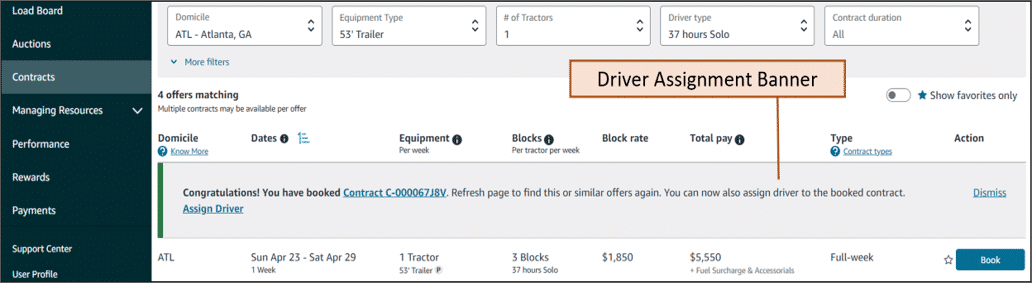
After confirming the booking of a Contract on the Available Offers page on Relay, a booking confirmation banner appears. Access the Driver Assignment page for that contract by clicking the Assign Driver link in the banner.
Via Contracts Tab
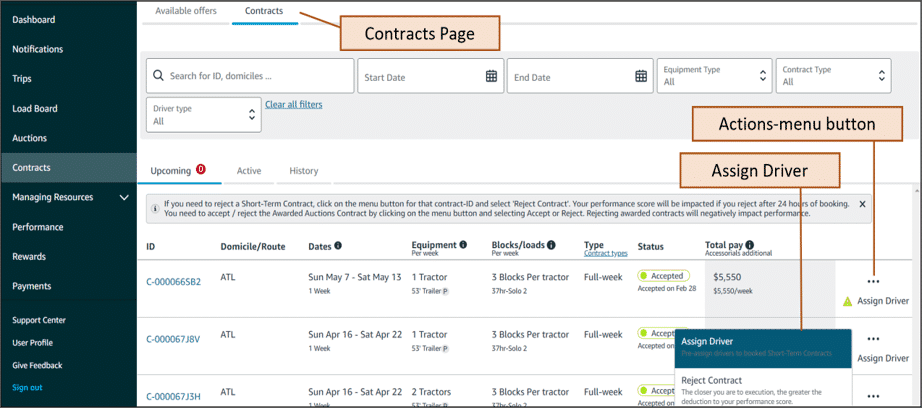
Access the Driver Assignment page for the booked contracts by clicking the Contracts tab, then Contracts, then the Actions menu button for the booked contract you want to assign drivers to, and then selecting Assign Driver from the menu.

Finding Tendered blocks
Rejecting blocks
Finding Tendered blocks
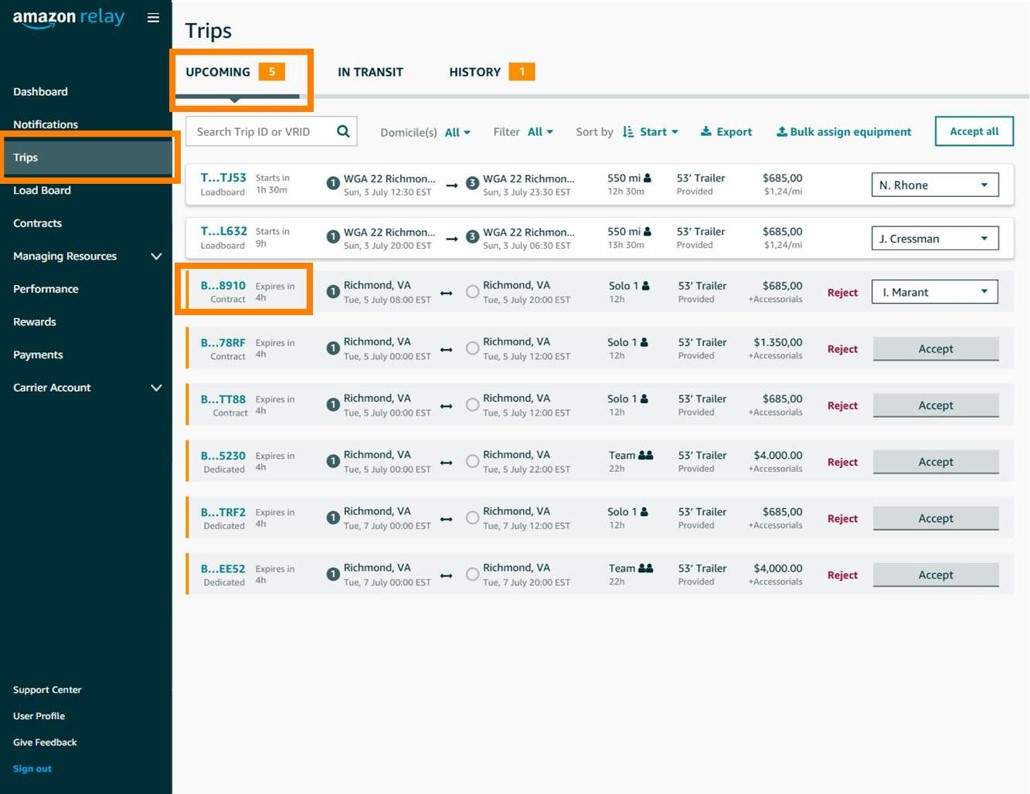
Blocks appear in the Upcoming tab of the Trips page and trips associated with contracts have a contract designation below the block ID.
Note: Blocks for Standby contracts will not be tendered for on the Trips page because the start time, date, and location were already shown upfront while booking Standby contracts.
Rejecting blocks
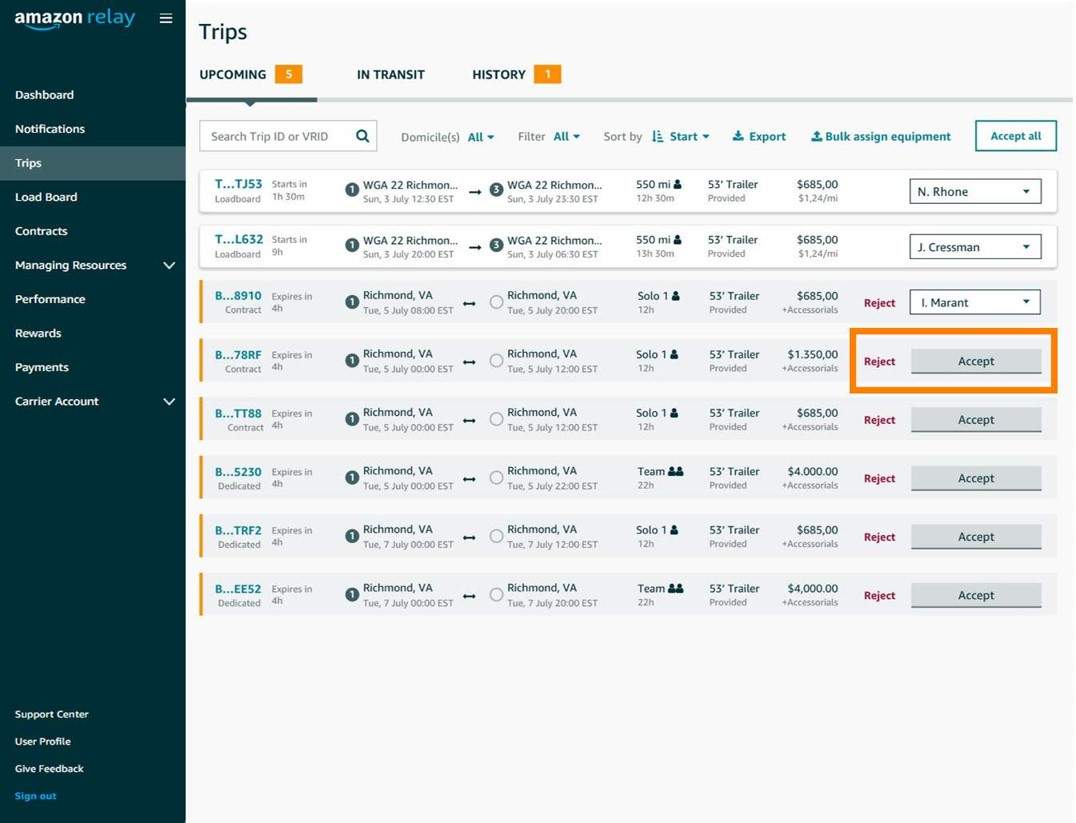
Blocks can be rejected during the first 4 hours after tender; this will impact your Performance Score.
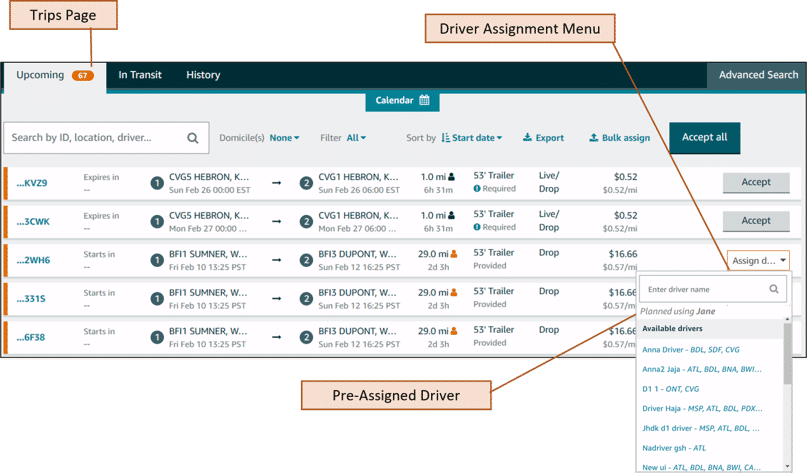
After acceptance, you should also assign a driver to each block.
You must assign the drivers to the blocks even if you have already preassigned those drivers to the contracts. If you have not preassigned drivers to the contracts, you must ensure HOS compliance across blocks while assigning the drivers to the blocks. This will avoid overlapping blocks.
our details become available 12 hours before the start of the block; however, in some cases, details may change or get assigned to a block after the block start time. There will be a minimum 2-hour lead time when Amazon changes or assigns a tour to a block after block start time.
The Tendered Tours details include:
- Tour ID and VRID.
- Trip details including routes and legs.
Click on the image below for a larger picture of an example block schedule.
NOTE: Load details under Standby contract may appear on Trips page any time between 6 hours before the contract start time and 1 hour before the contract end time. At least 1-hour lead time will be given before the load starts because the approximate city within the domicile near which load will start is also shown upfront at contract booking stage. You must assign a driver to the Standby loads as soon as they appear on Trips page to avoid load rejection penalties.
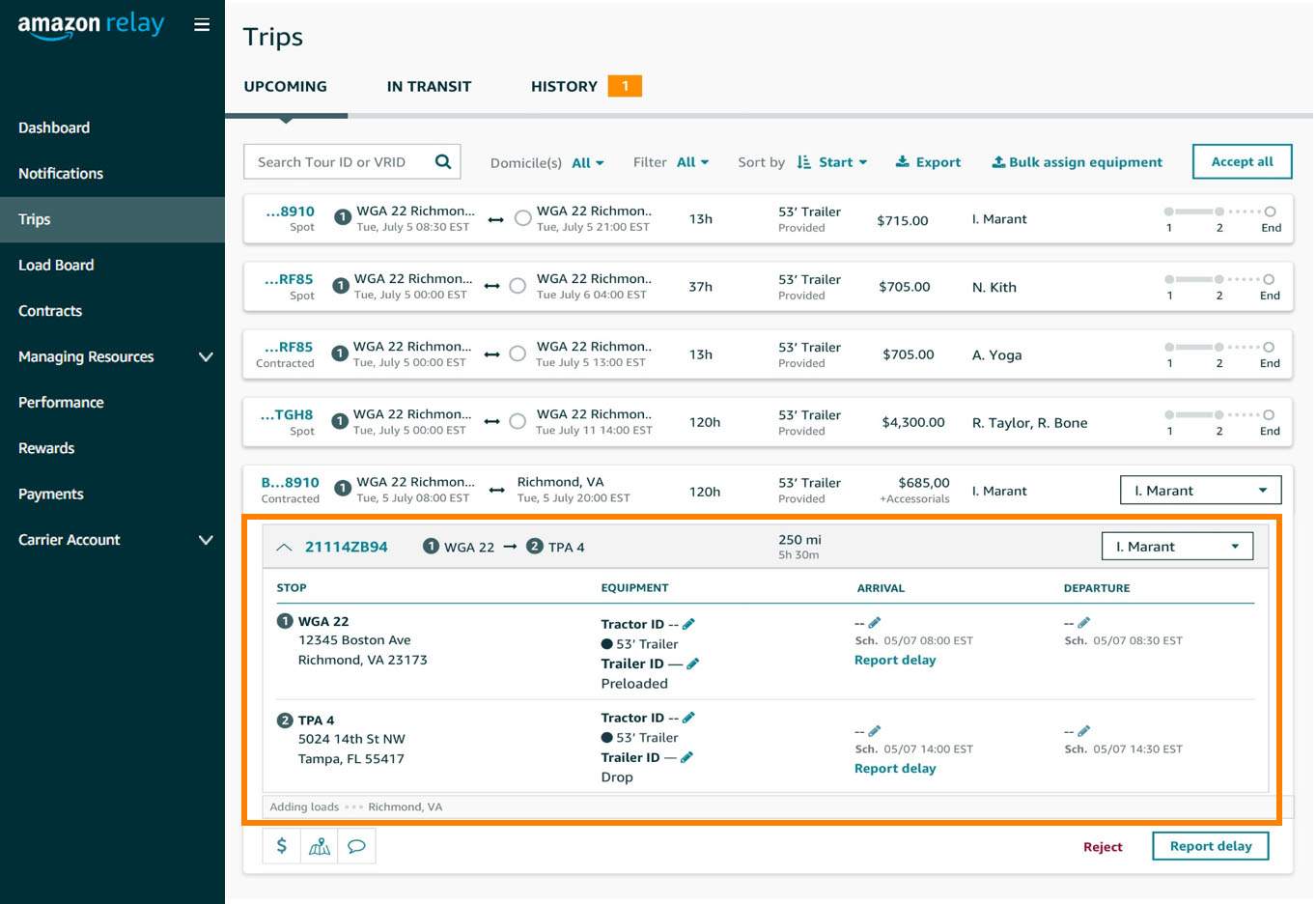
Trips page
You must ensure that drivers, trucks, and equipment are available for the duration of the block. Tour details will also be made visible to the assigned driver in the Relay Mobile app.
To the left, you can see an example of route details for a block on the Trips page. Click on the image for a larger picture.
As with regular Amazon work, all route details are available on Relay.Amazon.com and the Amazon Relay mobile app for drivers.
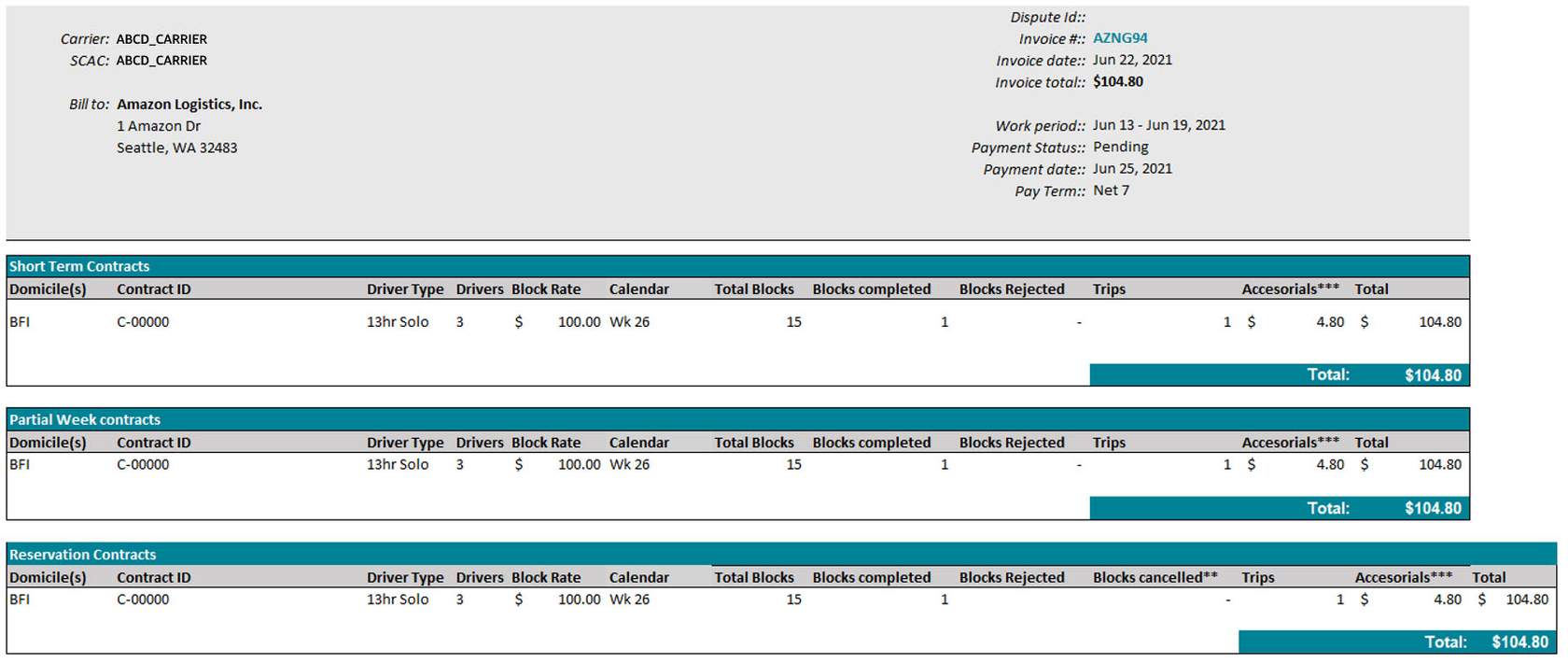
As with regular Amazon work, additional details can be found in the downloaded version of the invoice, including:
- Contract ID
- Driver type
- Number of tractors
- Calendar week
- Block rate, total Blocks, Blocks paid, Blocks rejected, Trips
- Accessorial charges
Below you can see a sample invoice. Click on the image for a larger picture.