

Mccoy

Overview

Introduction

This training explains Post A Truck, its functionalities, features, and best practices to ensure that carriers are utilizing the mechanism to its fullest potential.

Target Audience

  • Carriers

Time

This course will take approximately 15 minutes to complete. 

Navigating This Course

This course is mobile friendly. You can take it on your phone or on a computer. Select the cards below for tips on taking this course on your phone.

Click the magnifying glass icon (+) to zoom in and click again to return to normal size.
When you see a "CONTINUE" button, select it to unlock the next section of the course.
Rotate your phone for better access to course content.
What is Post A Truck?

Post A Truck is an automatic-booking mechanism based in flexibility, competitive rates, full visibility, and 24/7 carrier support. 

Press the play button below for a quick overview of Post A Truck.

Find Loads Impacting Your RPS

Why Use Post A Truck? What makes Post A Truck different?

Press each card to flip and learn more about just some of the reasons why PAT can help grow your business.

Flexibility

Click to flip Carriers enter information so that they are matched with loads that exactly meet their needs.

First Access Advantage

Using PAT allows the carrier to have earlier access to all load options available during the timeframe they set.

Maximizes Efficiency

PAT saves time. Post A Truck can be used rather than constantly watching the load board. The options come to you!

Curated Loads

Many carriers prefer to run similar loads on a daily basis. PAT allows carriers to duplicate requests through saved searches.

When is the best time to Post A Truck?

When can I book?

You can post NOW or even up to
two weeks in advance!

How to Use Post A Truck

When is the best time to Post A Truck?

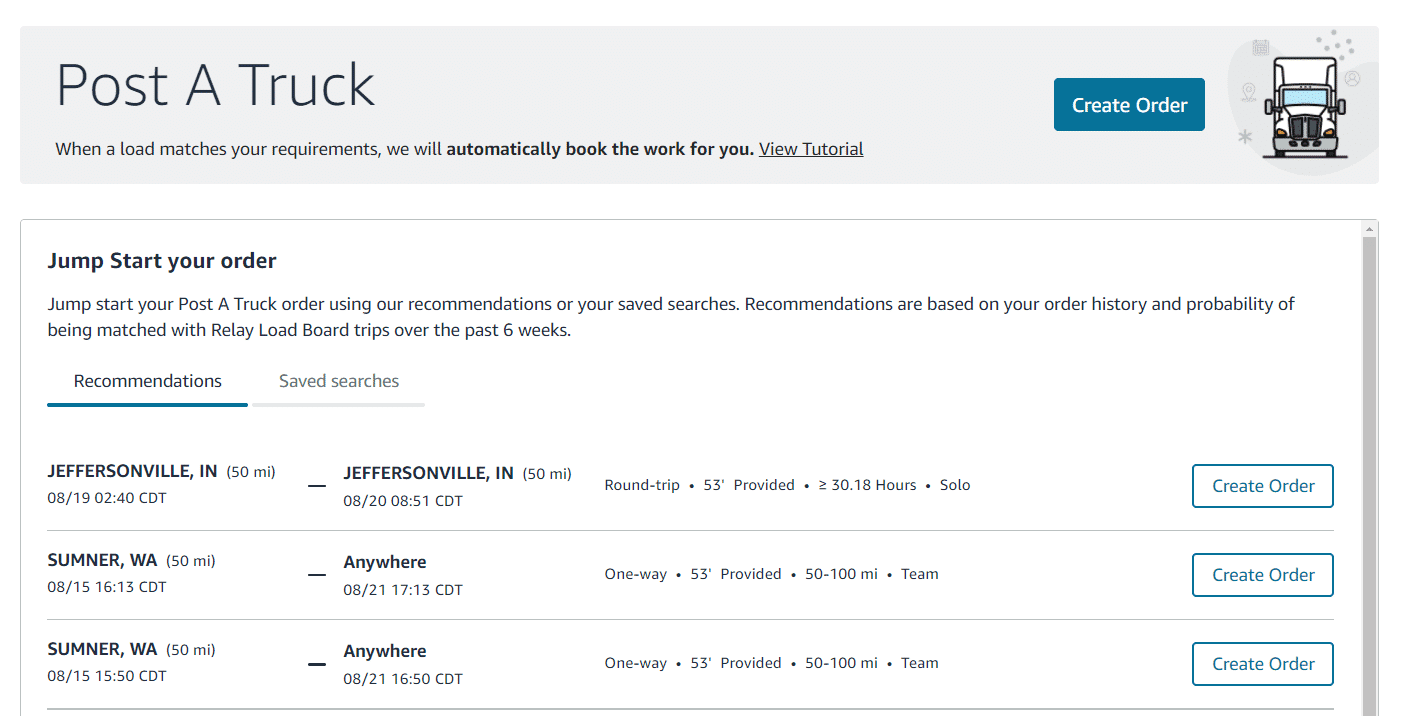
  1. Recommendations.
  2. Saved Searches.
  3. Create Order.

Press each hotspot to below to learn more about each methods.

How to Create an Order
from Scratch

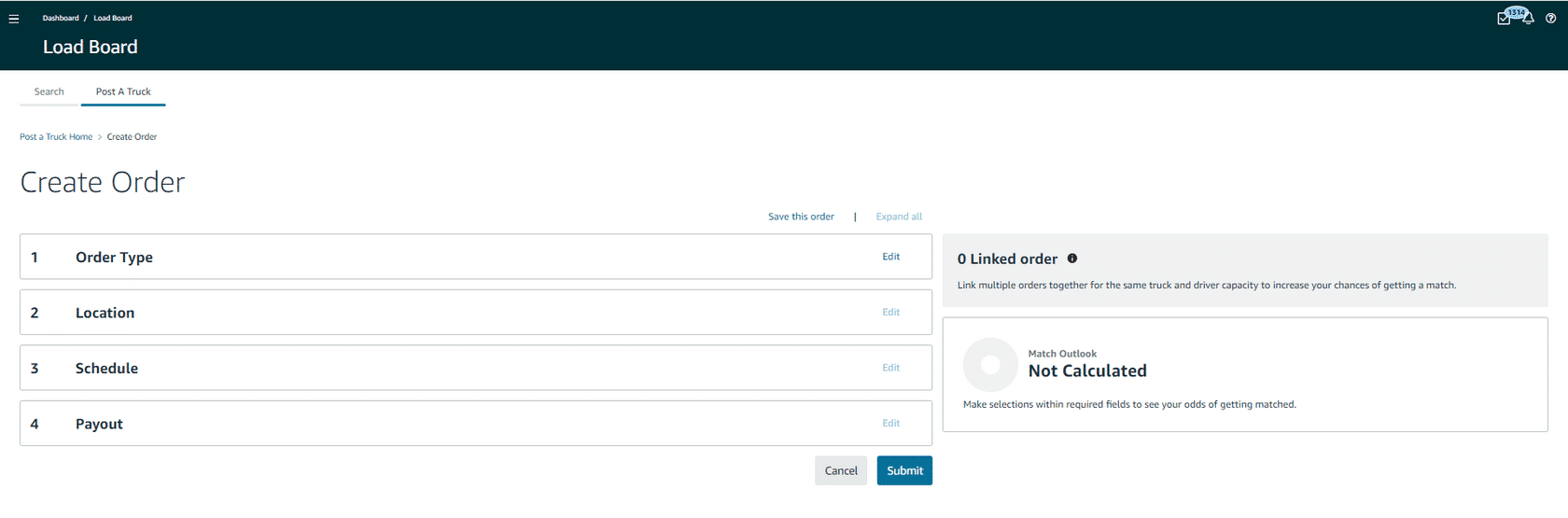
Easily create an order from scratch by entering your information in each of the order's sections:

  1. Order Type – Order Type is a profile for your company’s orders. Once an order is created, the order type is saved for future orders. 
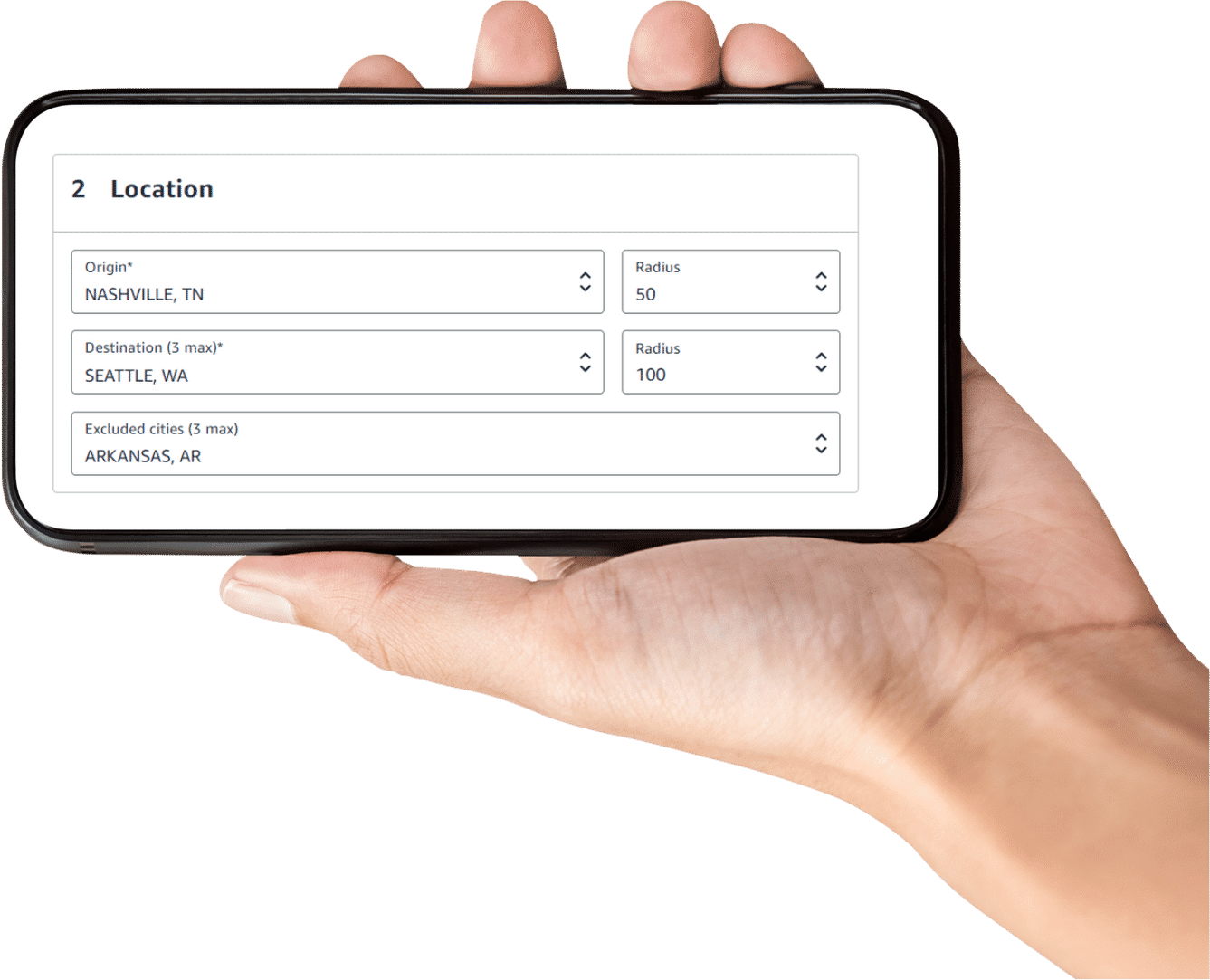
  2. Location – In Location, your company can specify origin, destination, and exclude cities that you do not want to go to. 
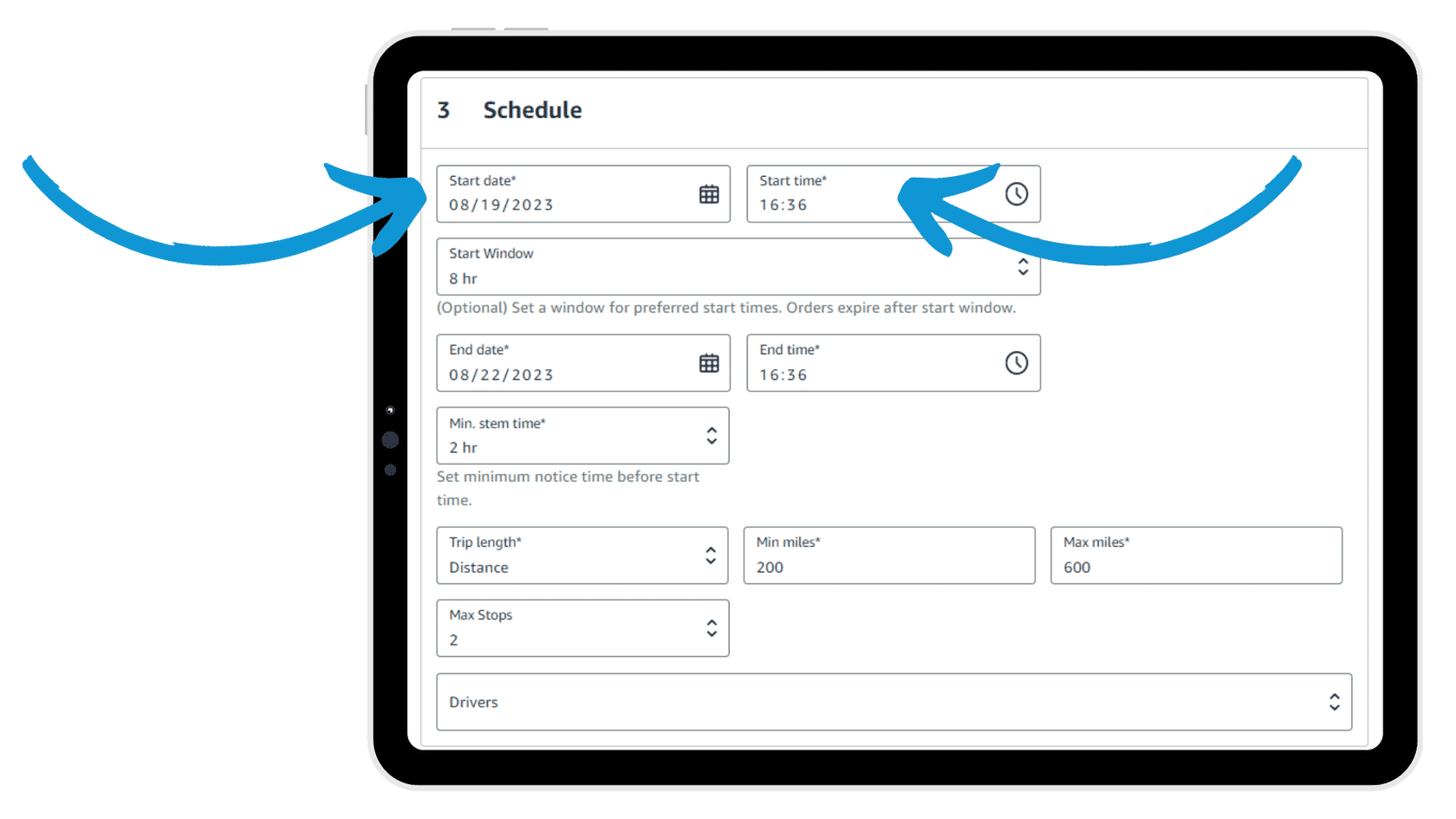
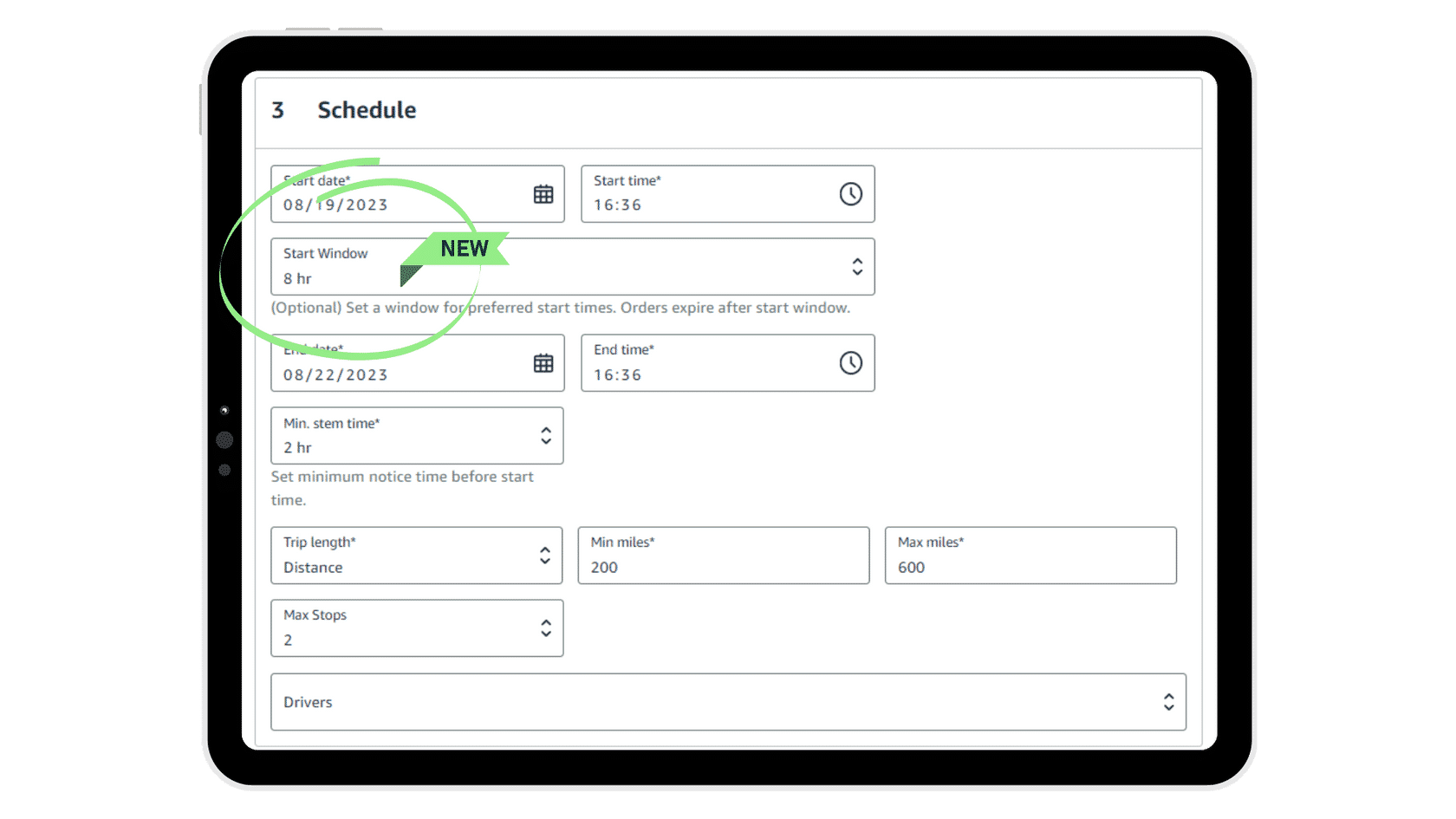
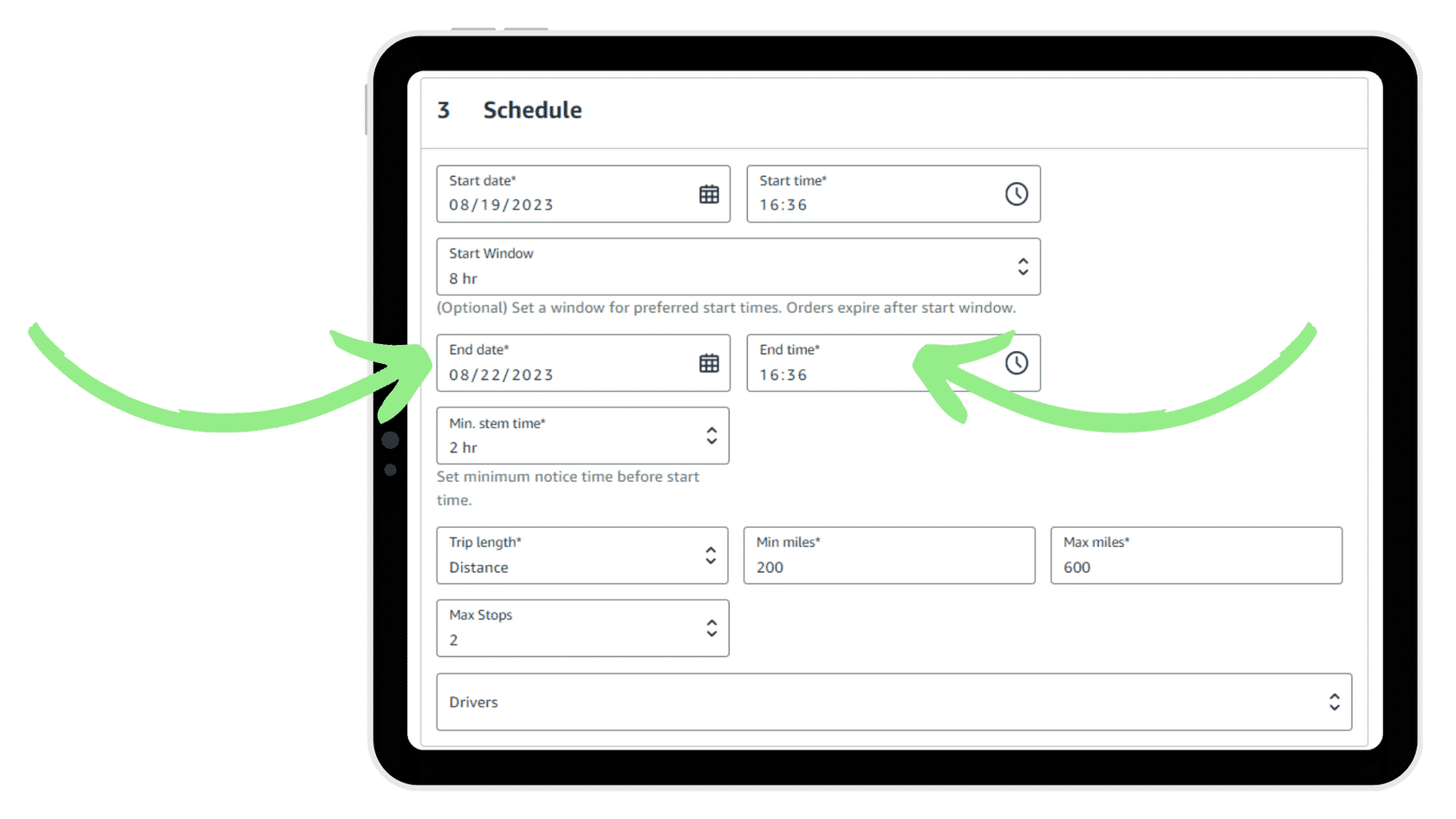
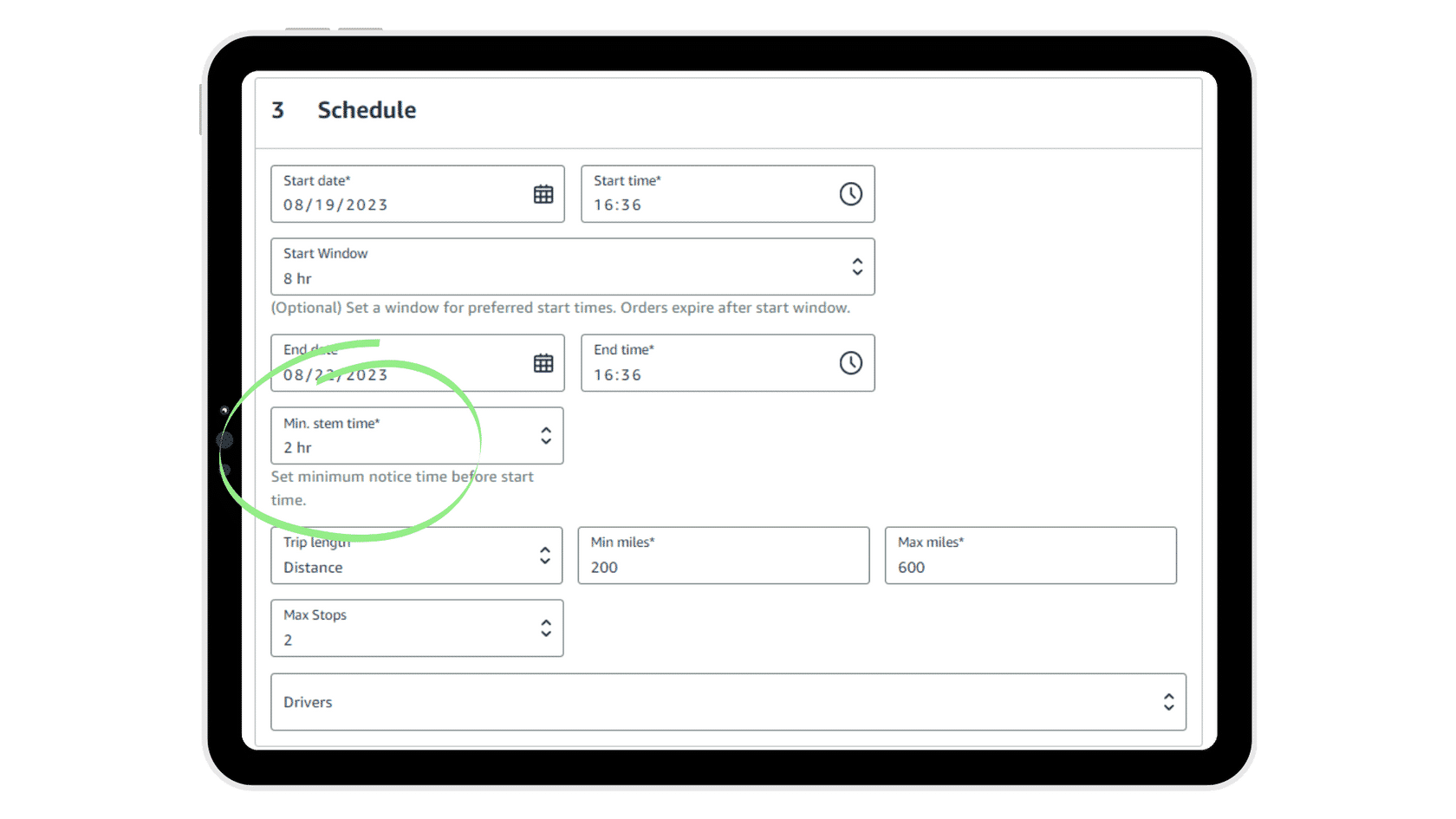
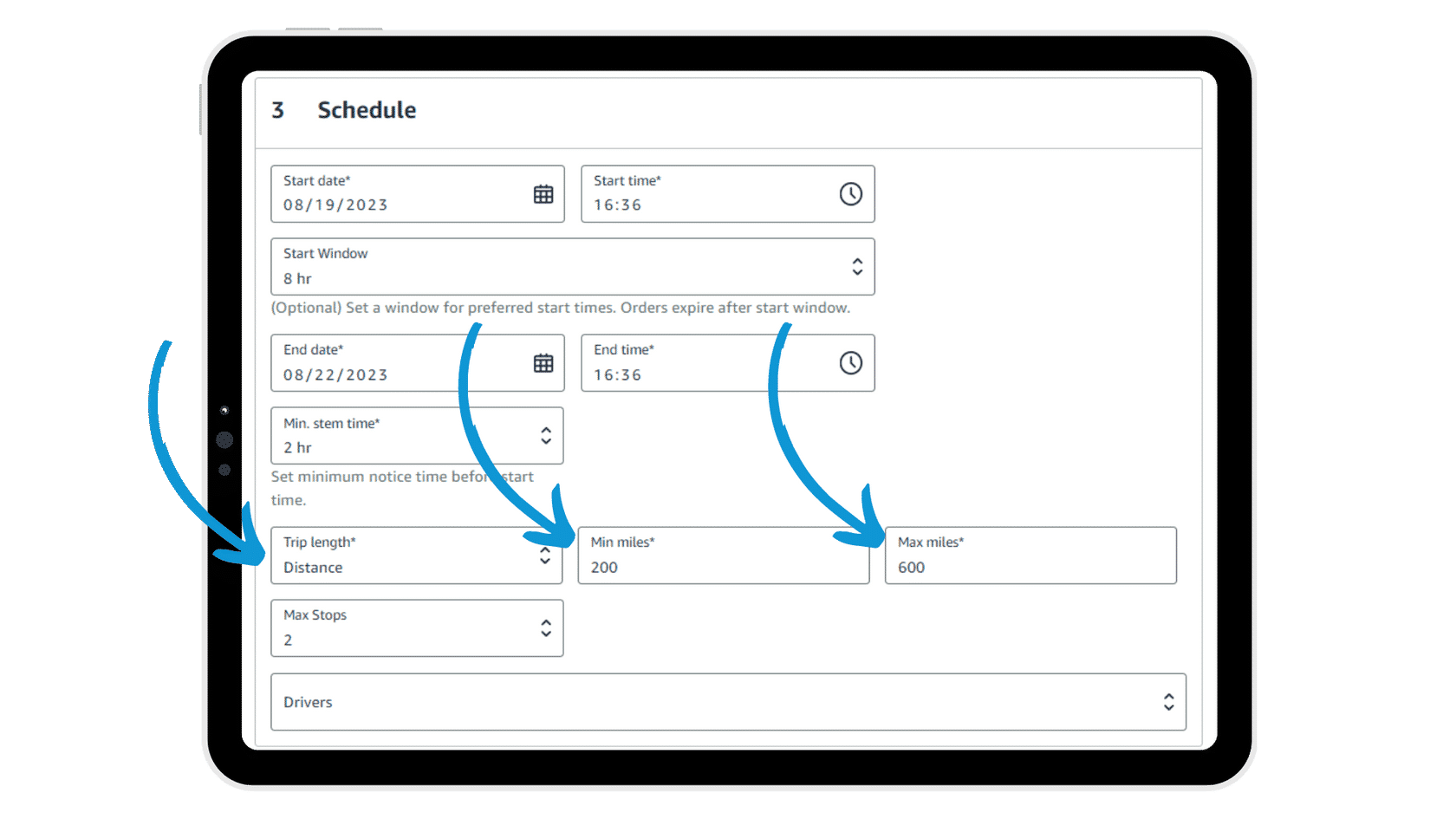
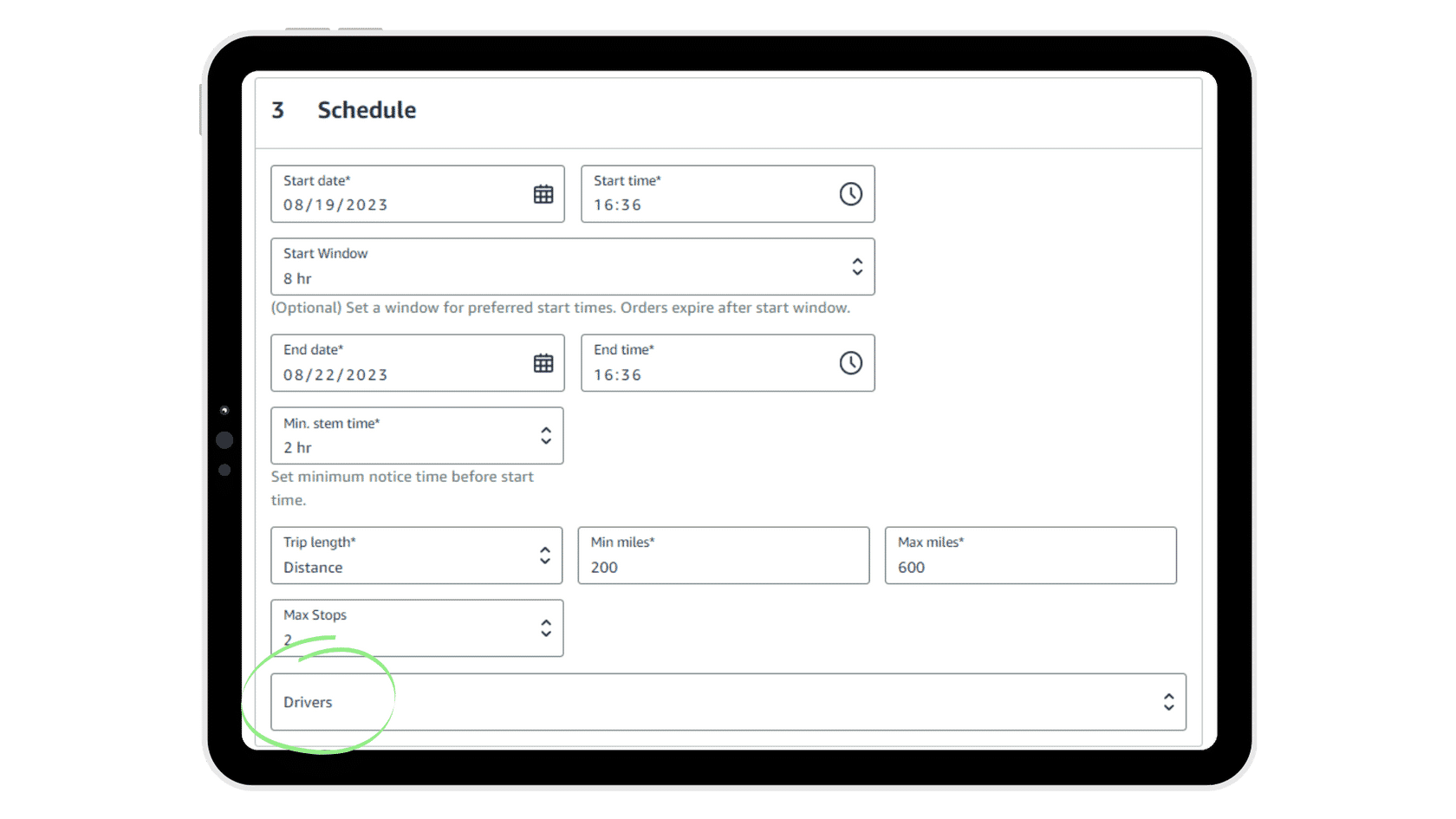
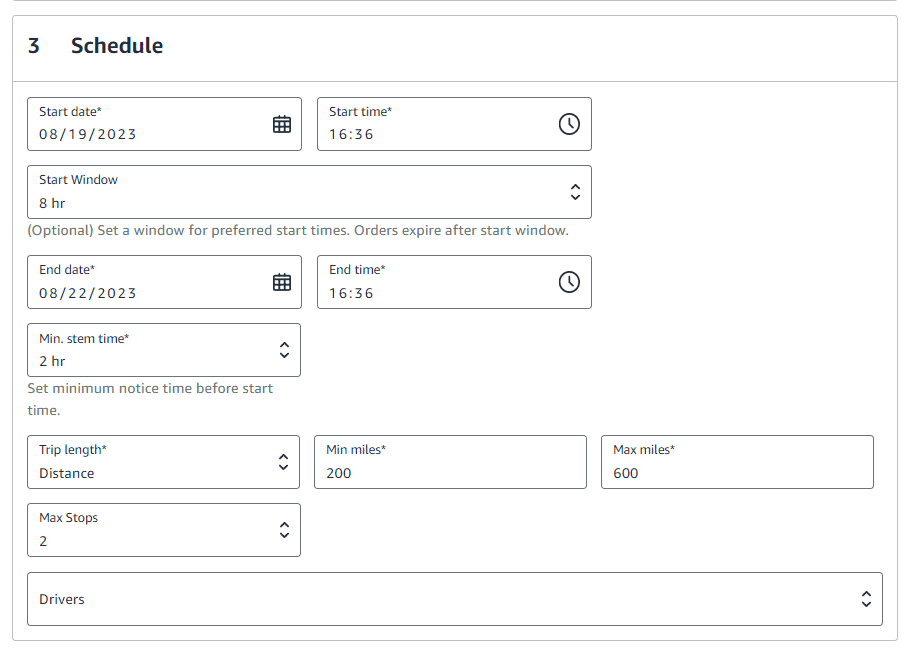
  3. Schedule – Under schedule, define the window of availability with a start time, optional start time window, end time, and stem time. Define the distance or duration thresholds. 
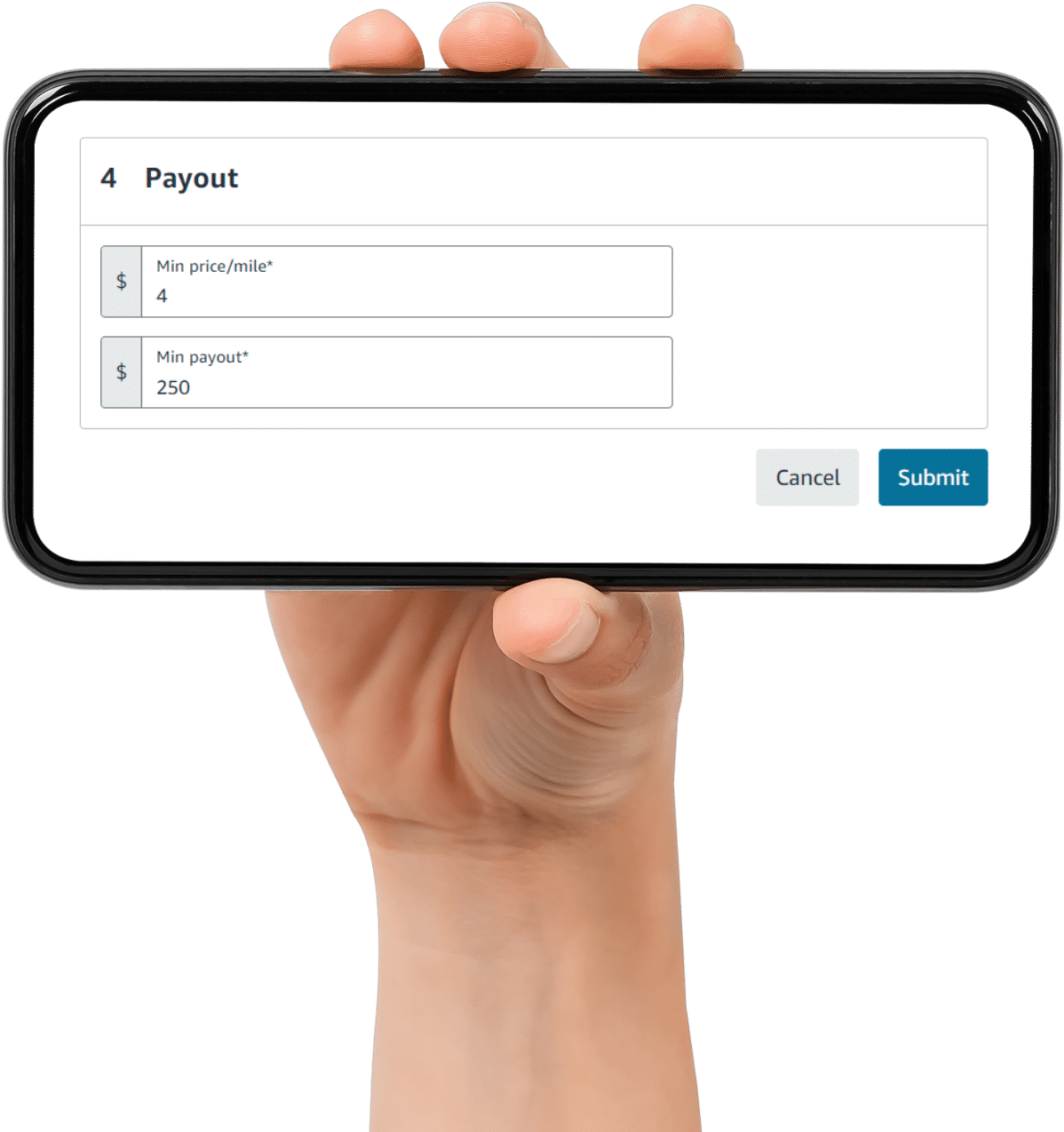
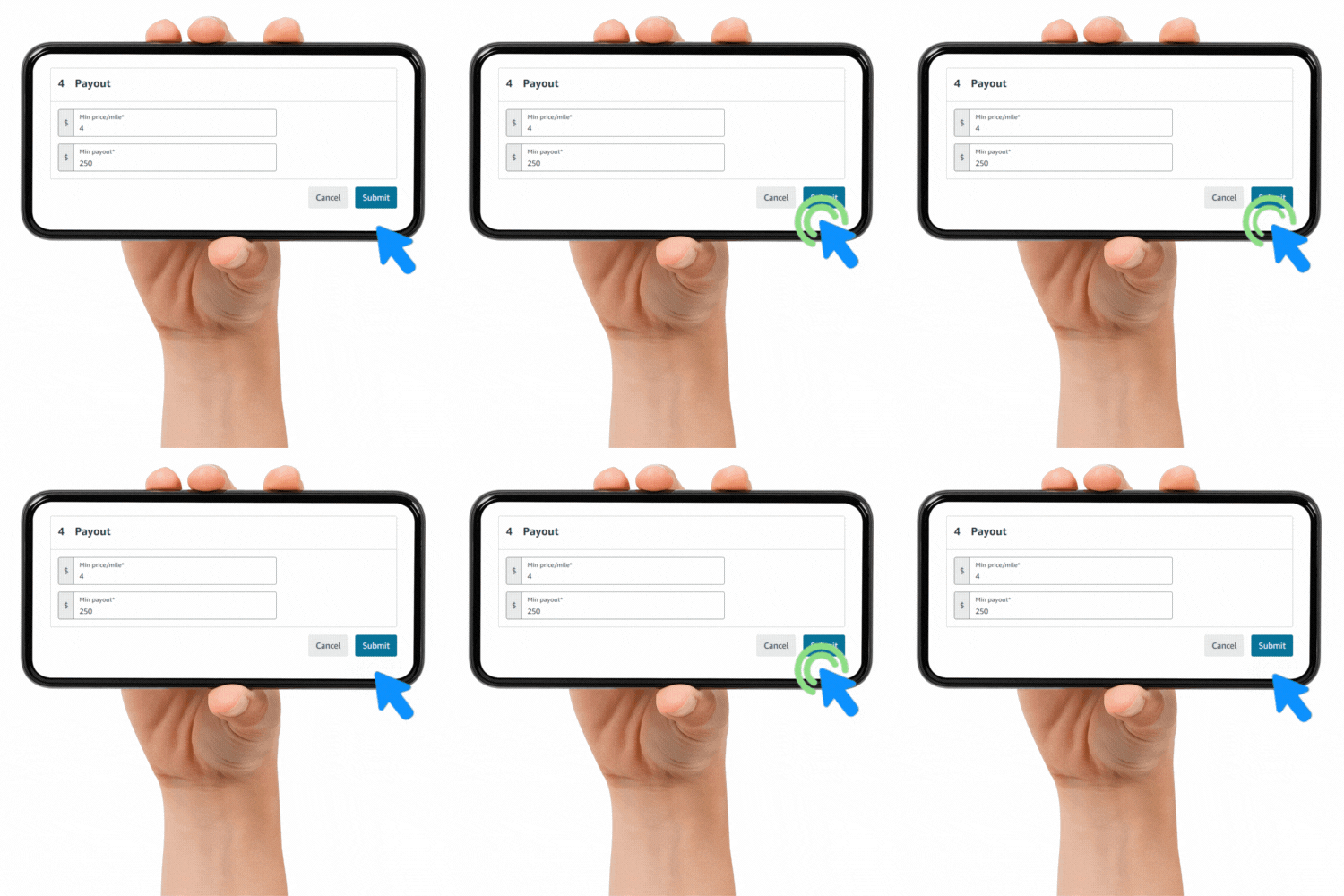
  4. Payout – Choose a payout amount. Both minimum payout and minimum price/mile can be selected. The payout entered will be greater than or equal to minimum price/mile x distance and total min. payout. 

STEP 1: Create Order Type

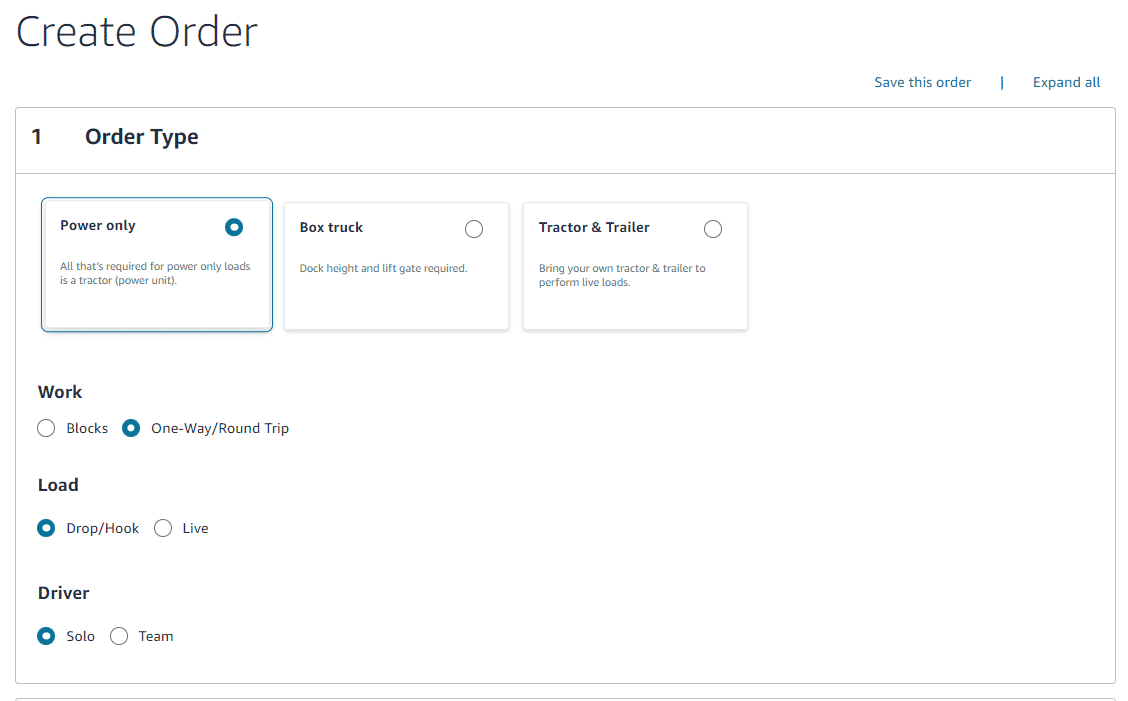
First, choose your order type depending on your equipment.

Your Order Type selections are automatically entered from your order profile, which are saved after each order. Pro Tip: Always review each order’s options to ensure that you are building the order based on your availability.

STEP 2: Choose Your Location

Then, choose your location fields.

Press each hotspot below to explore the elements of the Location fields.

Press the (+) icon to learn more about Location fields.

Choose your origin (where you start) and radius (distance you want to travel). This gives us a search radius for your first pick up location and maximum deadhead. 
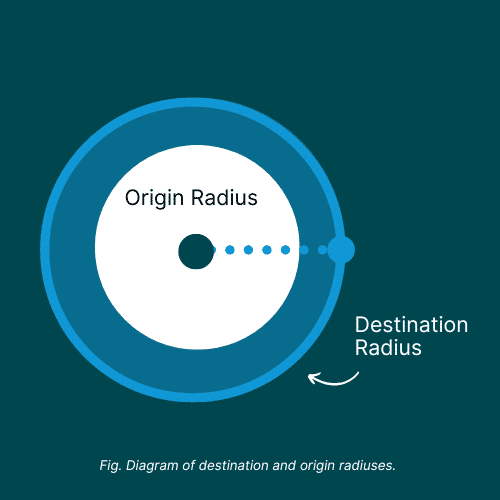
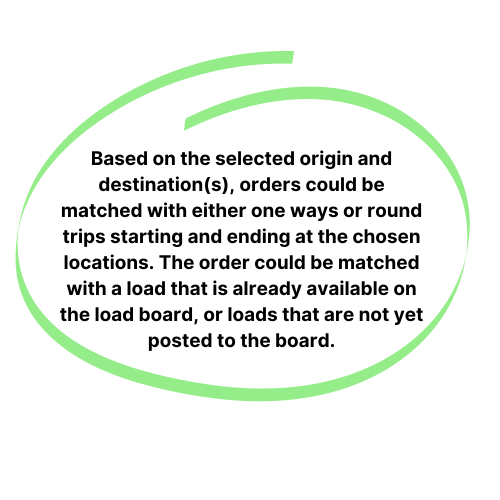
Choose up to three destination cities. Pro Tip: Include your origin city if you want to be matched with a one-way or round trip.
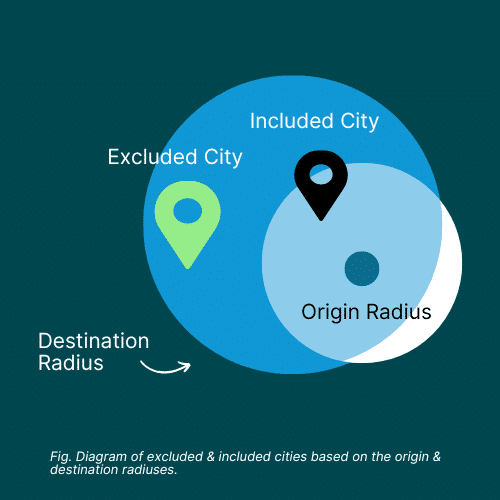
Exclude any city that you want! 
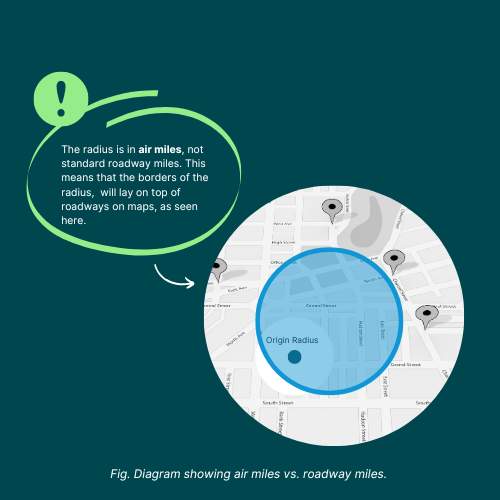
NOTE: The radiuses are measured in air miles, not standard roadway miles. This means that the border of the radius will fall on top of typical gridlines as seen in maps. Refer to the “Exclude Cities” tab above to view a diagram. 

STEP 3: Schedule

Next, complete all the detail fields to schedule based in your availability.

Press each tab to learn about scheduling.

Below is an example of completed schedule page.

STEP 4: Payout

Finally, enter your payout information.

Minimum Price/Mile & Minimum Payout
 
Under payout, select both a minimum price per mile and a minimum total payout. Choosing both filters will ensure your company is paid correctly for both short and long hauls. The payout will be determined by the actual miles driven, and will always be greater than or equal to both min. payout and min. price/mile times distance (refer to the downloadable resource for examples).

Ready?

Double check all your information and then once you’ve confirmed all the information is correct, hit the “Submit” button at the bottom of the page.

Confirmation

Now what? How do I know my order matched?

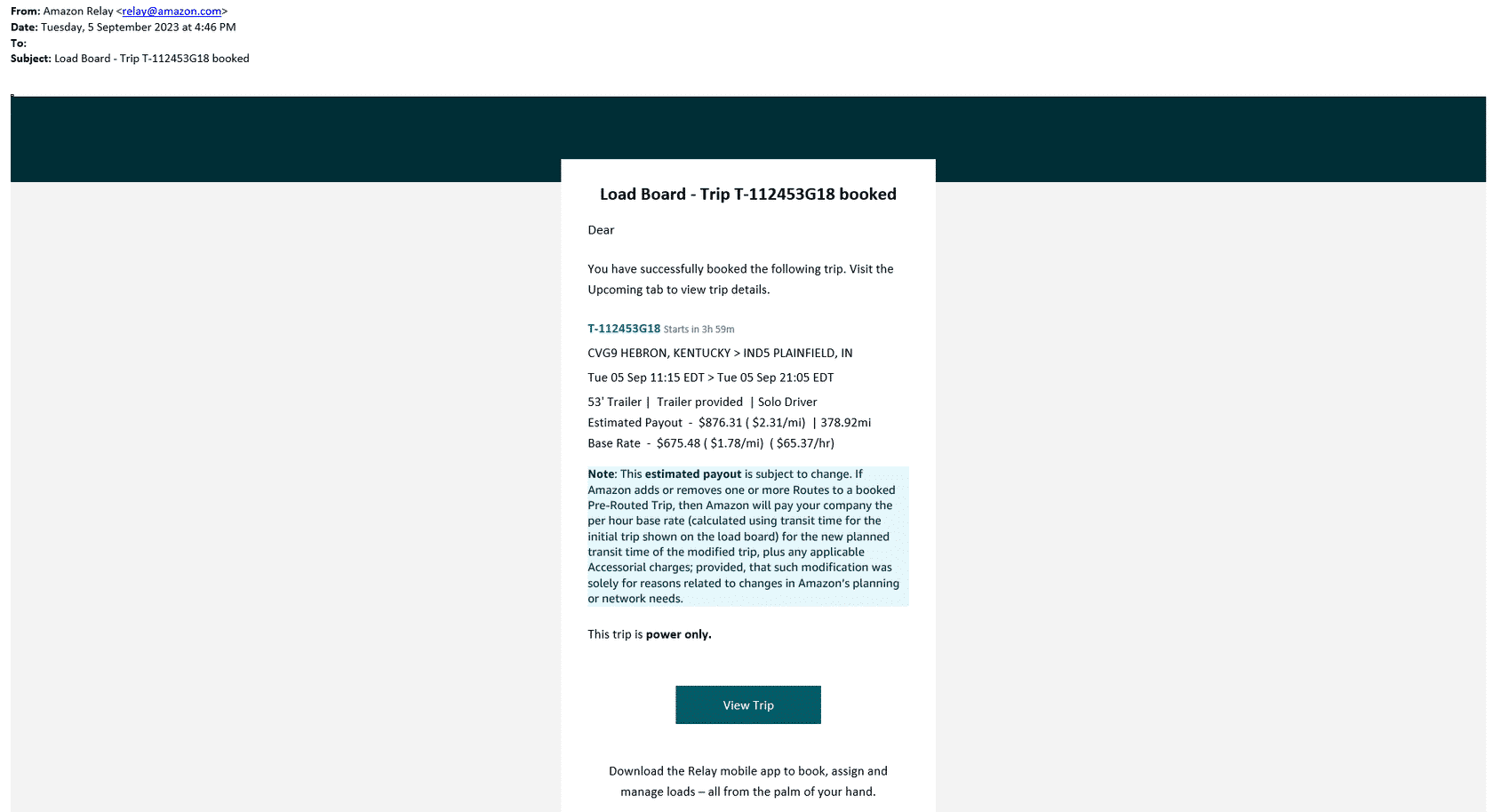
Success! When your order matches to a load, you are notified via email. Details are also available in the Matched tab in your Order List.

MATCH OUTLOOK

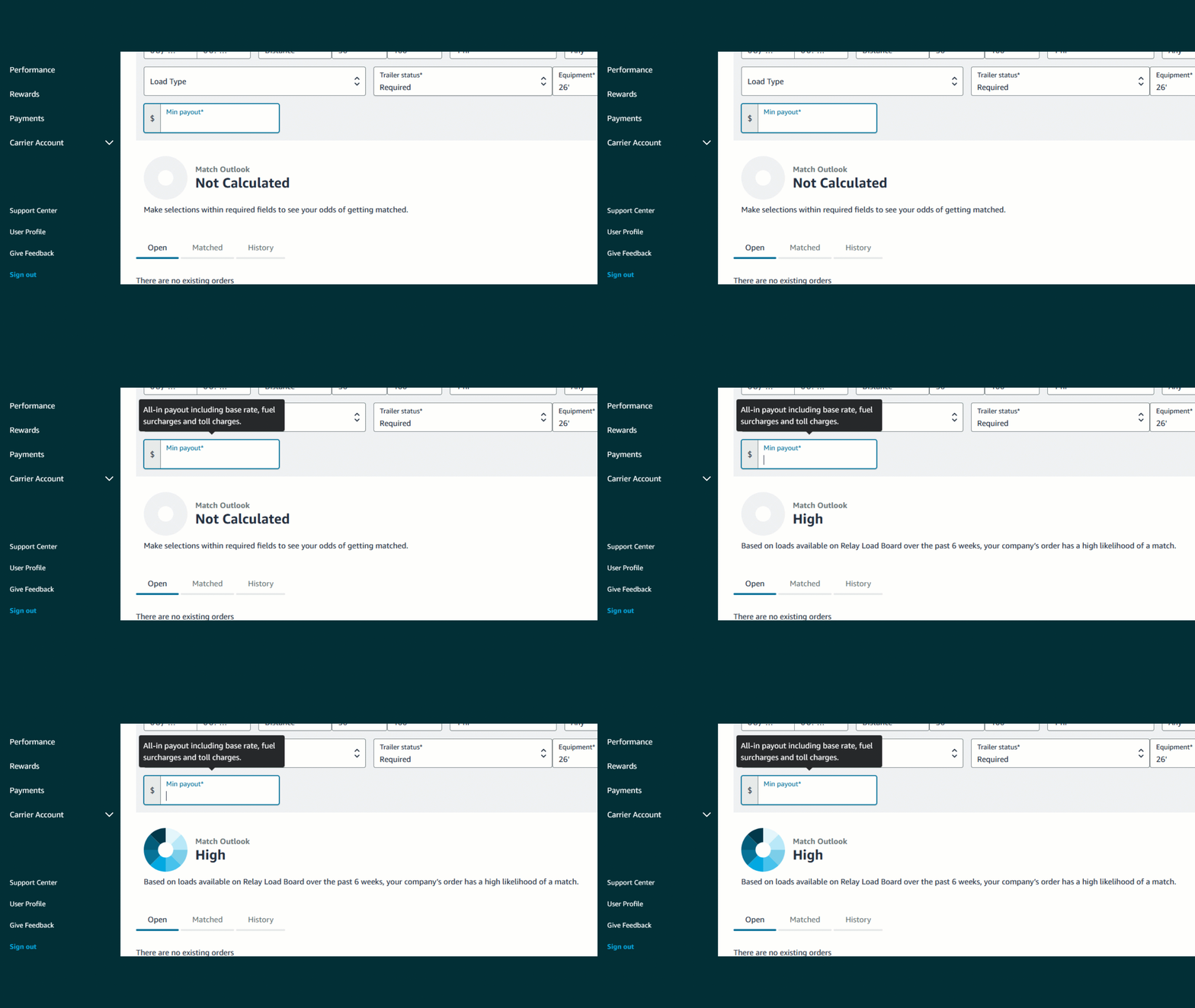
Match Outlook is an automatic feature that shows the probability of a posted truck matching to a load or trip.

Match Outlook

The Match Outlook will appear as you complete all the fields on the order page. 

Press each card below to flip and to see recommended actions for each Match Outlook outcome.

Did you receive a high Match Outlook? Go ahead and post!
Just like a high outcome, a medium outlook is still recommended to post.
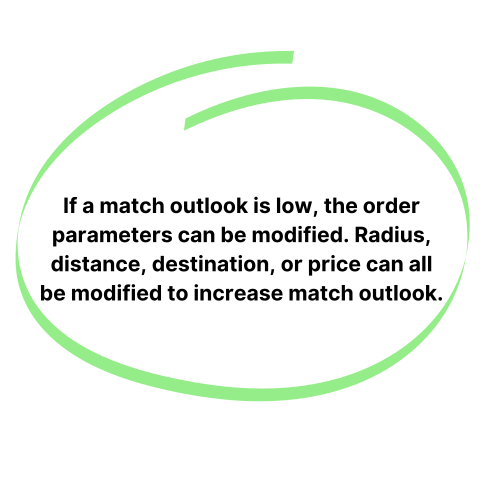
If the Match Outlook is low, however, adjust the fields to increase your probability of matching.
BLOCK ORDERS

Block orders are for tours that start and end at the same domicile.

Understanding block order timing is very important. Review the timing and availability requirements below:

PLAN AHEAD
Block orders must be placed 54 hours ahead of the start time.
TOUR DETAILS TIMING
Tour details become available 15 hours before the start of the block. There is a minimum 1-hour lead time when Amazon assigns a new tour (trip) to a block. Be aware that details or the assignment may change after the block start time. Amazon may modify any load on a tour until the next load process begins.
DRIVER & EQUIPMENT AVAILABILITY
Ensure that both the driver and equipment are available for the entire duration of the block.
You can also use the filters to see only your
block orders, as seen here.
LINKED ORDERS

Linked orders, PAT’s newest feature, now gives you the freedom to connect your multiple orders as a single fulfilled order!

Linking orders prevents overbooking, and provides a greater chance of matching. Up to three orders can be linked. Only one of the linked orders will be fulfilled, and the rest will be cancelled.   

Key Takeaways and Resources

Key Takeaways

  • Post A Truck’s order creation gives you more control over the loads you book by determining your order type, location, schedule, and payout preferences, bringing the trip you want directly to you instead of browsing the load board.

  • Post A Truck allows you to post through recommendations, saved searches, or by creating your order from scratch.
  • Post up to 2 weeks in advance.
  • Match Outlook gives you a an estimate of the likelihood your proposed load will match to an offer.
  • Linked orders prevents overbooking, increases the likelihood of matching by allowing you the capability of combining up to 3 trip types. 
  • Block orders are paid in full, even if amazon does not utilize the entire block length.
Additional Resources

Download the Post A Truck Guide to keep with you for all things PAT like examples, scenarios, definitions, and more!