
This course will cover asset import and verification, as well as gate rejections from unverified equipment.
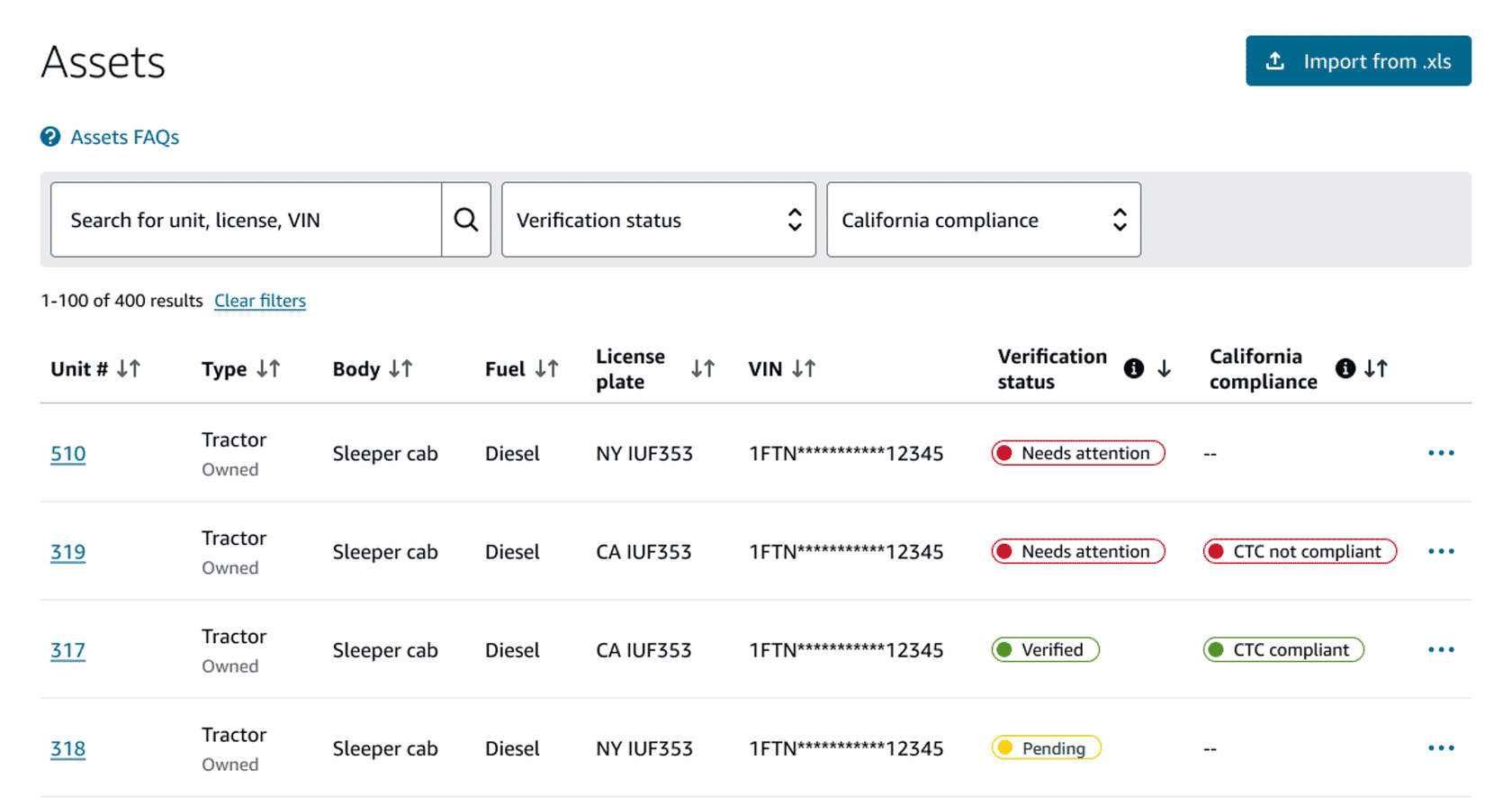
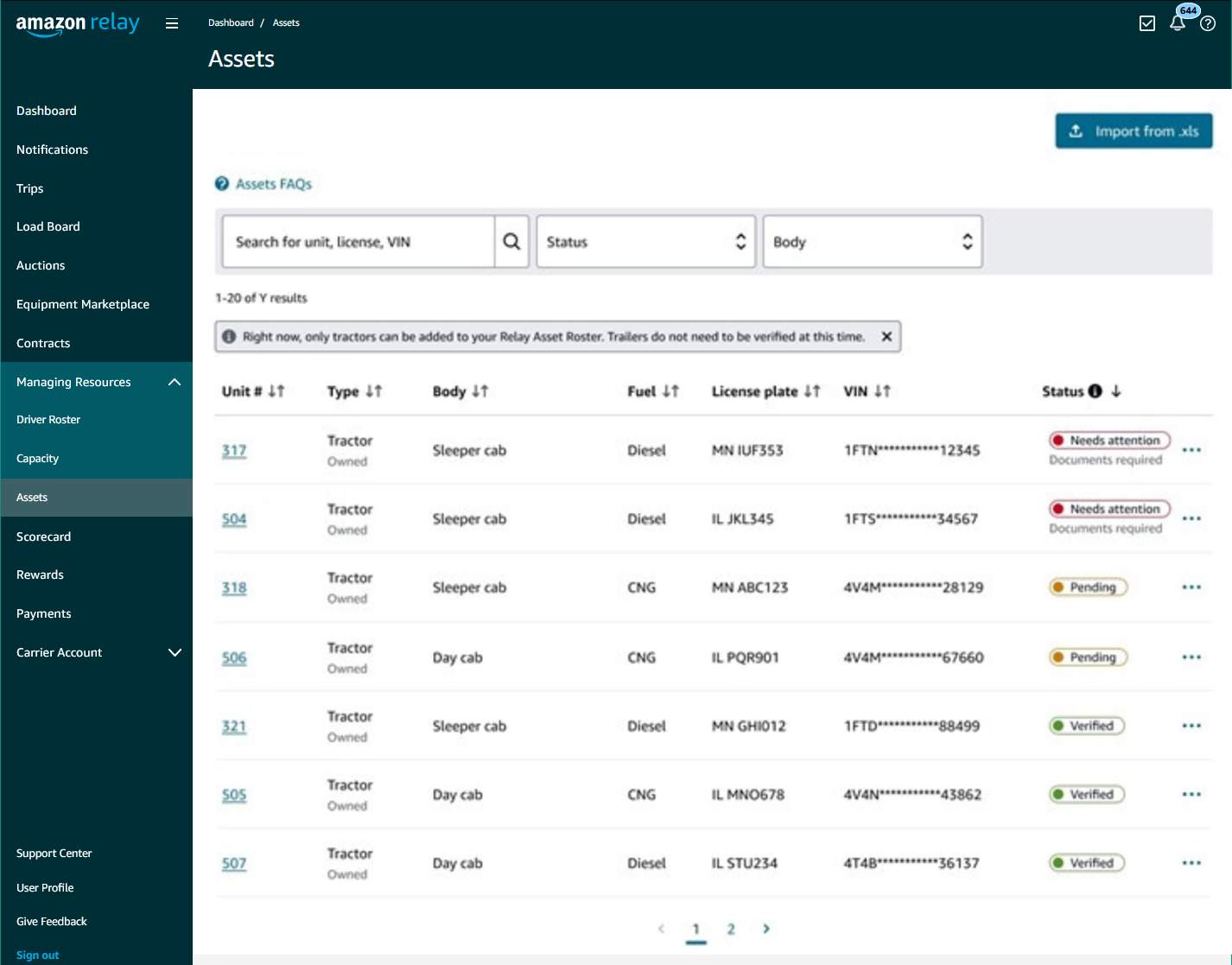
The Assets page in your account should list all tractors (day cabs and sleeper cabs) and box trucks your company plans to use for Amazon loads. All assets must be verified. You’ll need to make sure this list is up to date. Only assets listed in your account can be added to trips. Loads hauled using trucks not listed and verified will be rejected at Amazon yard check-in.
We’re rolling out changes to the Assets page, assigning assets to trips, and yard rejections from arriving with an unverified asset on a carrier-by-carrier basis. Your company might not see the Assets page or these requirements in your account yet.
Note: You can find additional resources after the course assessment.
10 minutes
This course is mobile friendly. You can take it on your phone or on a computer. Select each card below for tips on taking this course on your phone.
Carriers are required to import asset details into their Relay account. You should add any tractors (day cabs and sleeper cabs) and/or box trucks that you plan to use for any Relay loads. Once imported, Amazon will verify asset attributes and carrier relationship with the asset.
Below, you can find the full process to import assets into Relay.
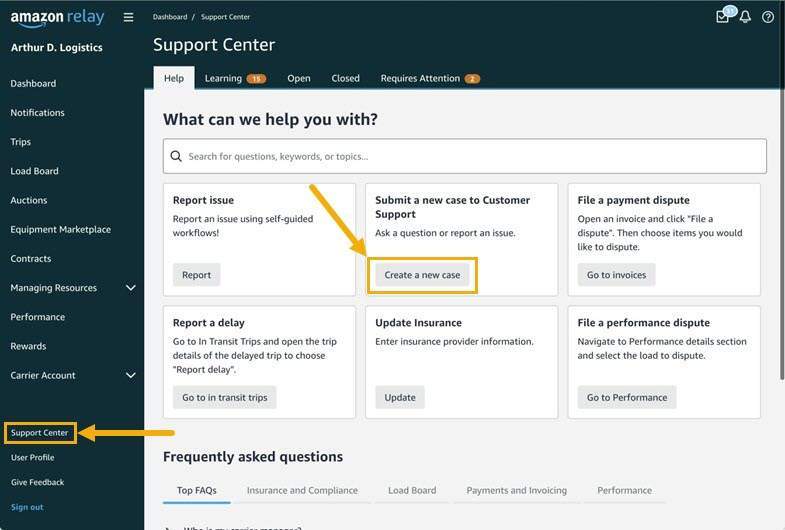
You may see equipment details already on your Assets page that your company didn’t import. This means Amazon imported assets that your company has already provided details about. You should carefully review the details of assets that Amazon has imported. If the details Amazon imported has errors or if any equipment is not currently a part of your active fleet, you can edit or delete assets. Create a case in the Support Center to edit an asset, or delete the asset from your Assets page.
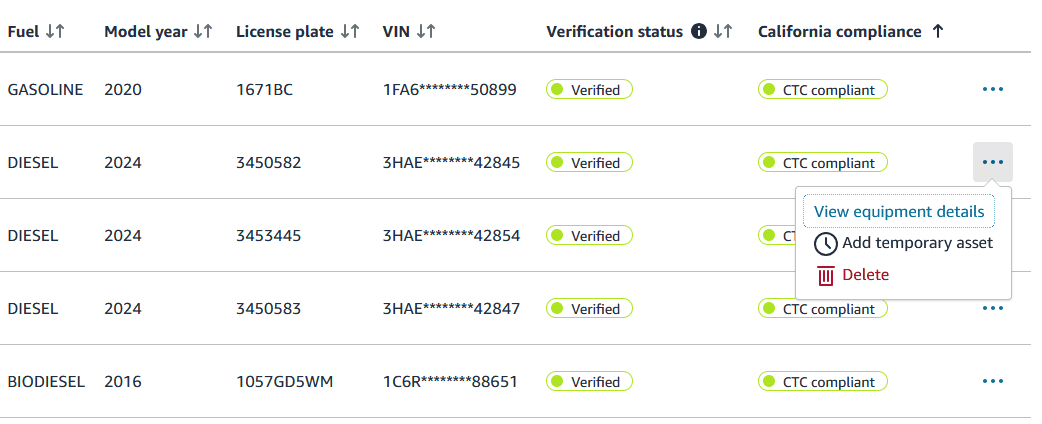
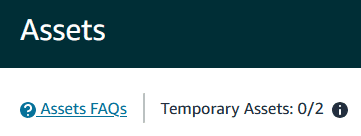
We understand that you might want to quickly add eligible trucks to your roster while verification is in process. You can add backup trucks to your roster to quickly expand your fleet and/or minimize downtime during maintenance.
Here are a few things to keep in mind:
Temporary assets are ready to assign to trips right away while standard verification is in progress. The assets will become ineligible for trips if we’re unable to verify through the standard process because of incorrect or missing documentation.
For California loads: Assets listed on your company’s California Air Resources Board (CARB) Clean Truck Check (CTC) certificate can be replaced with a temporary asset for automatic verification.
However, you’ll need to provide CTC compliance documentation before using the truck for a load through California. You can do this in your Relay portal on the Carrier Account > Documents> California Compliance page. CTC certificate review generally takes 2 days, but can vary depending on the information needed from your company.
Once you’ve imported your asset details and corrected any errors, the next step is verification. Amazon will kick this off automatically for each asset that your company imports. Assets will have 3 potential verification statuses: Needs attention, Pending, and Verified.
Once assets are imported and verified, you may need to edit or delete them. For example, if:
Asset information is incorrect
Your company no longer uses or owns an asset
Editing Asset Details
To edit asset details, create a support case.
Press each numbered marker to learn more.
Once you submit a case, you’ll receive emails about it from relay-asset-verification-appeals@amazon.com(opens in a new tab).
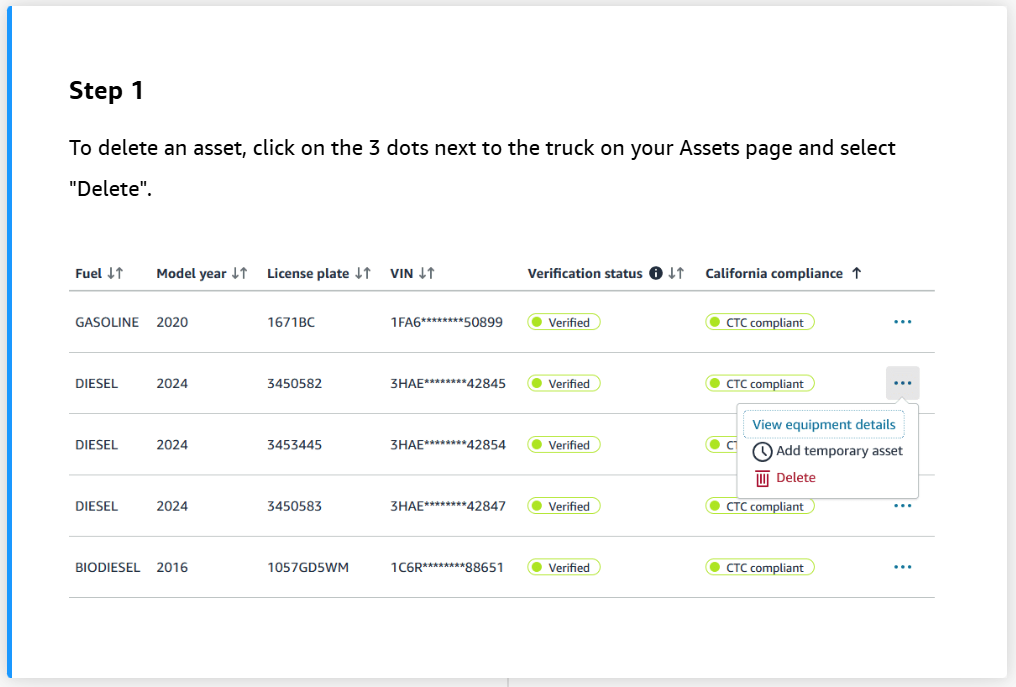
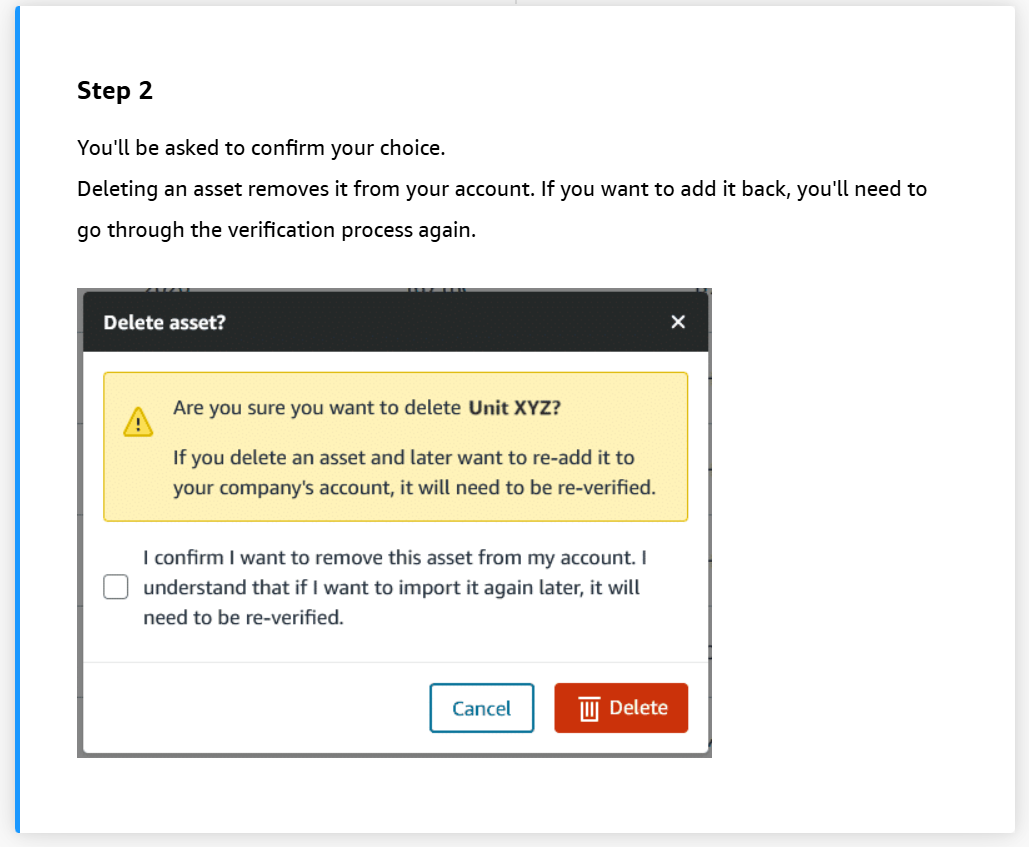
Deleting an Asset
You can delete an asset yourself from the Assets page.
We’re rolling out changes to the Assets page, assigning assets to trips, and yard rejections from arriving with an unverified asset on a carrier-by-carrier basis. Your company might not see the request to assign an asset to an upcoming trip in your account yet.
Once assets are verified, they’re eligible to be assigned to trips. You’ll only be able to select from a list of eligible and verified trucks. To avoid disruptions, assign the verified asset at least 5 hours before the trip’s scheduled arrival time. Loads without a truck assigned 3 hours before the scheduled arrival time will be rejected. Your company’s driver will see the assigned tractor in their upcoming trip details. Drivers can only override it with another verified asset, and won’t have the option to manually add a vehicle.
Press the plus (+) signs below to learn about the process to assign assets to trips:
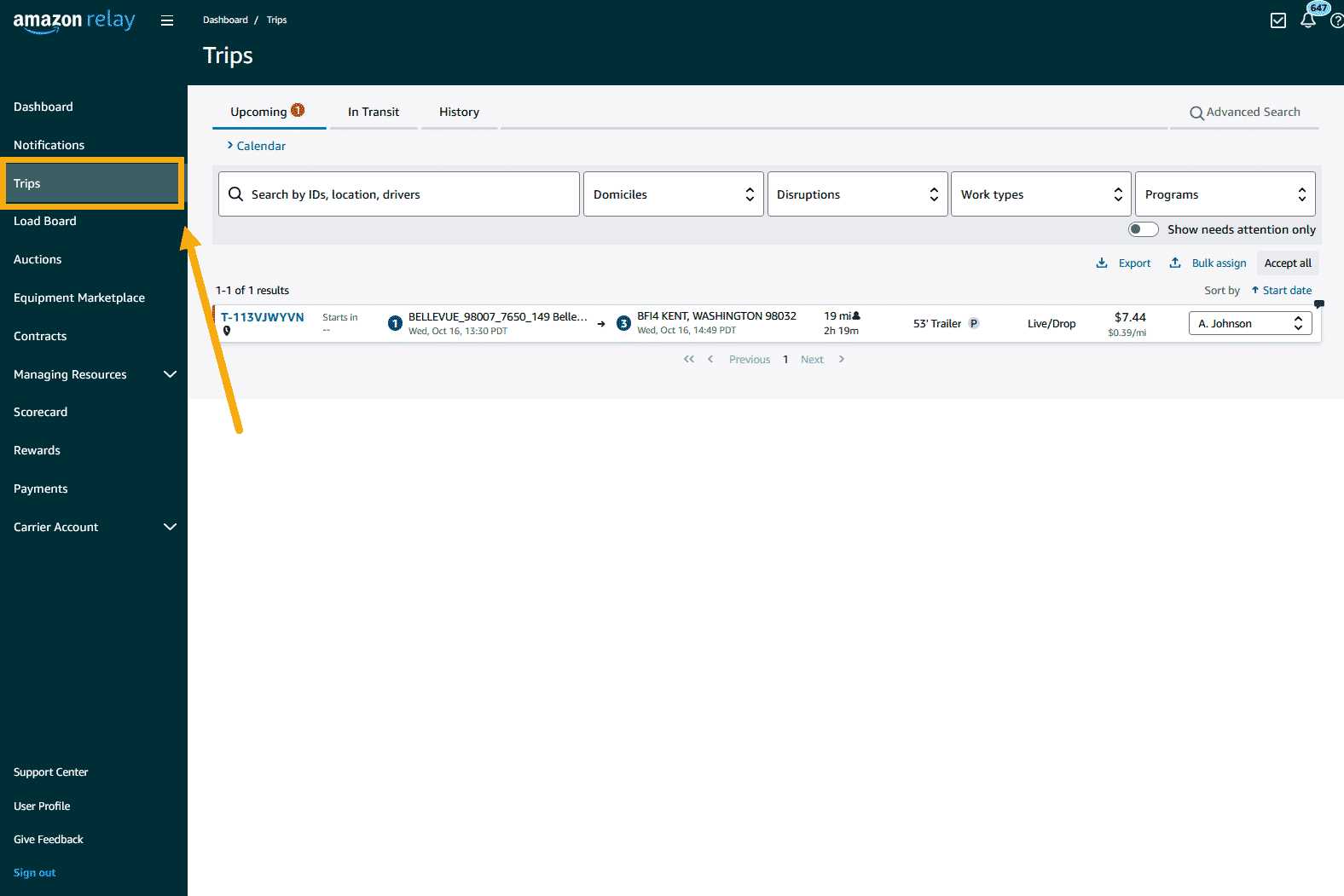
Navigate to the Trips page.
Click on Assign tractor.
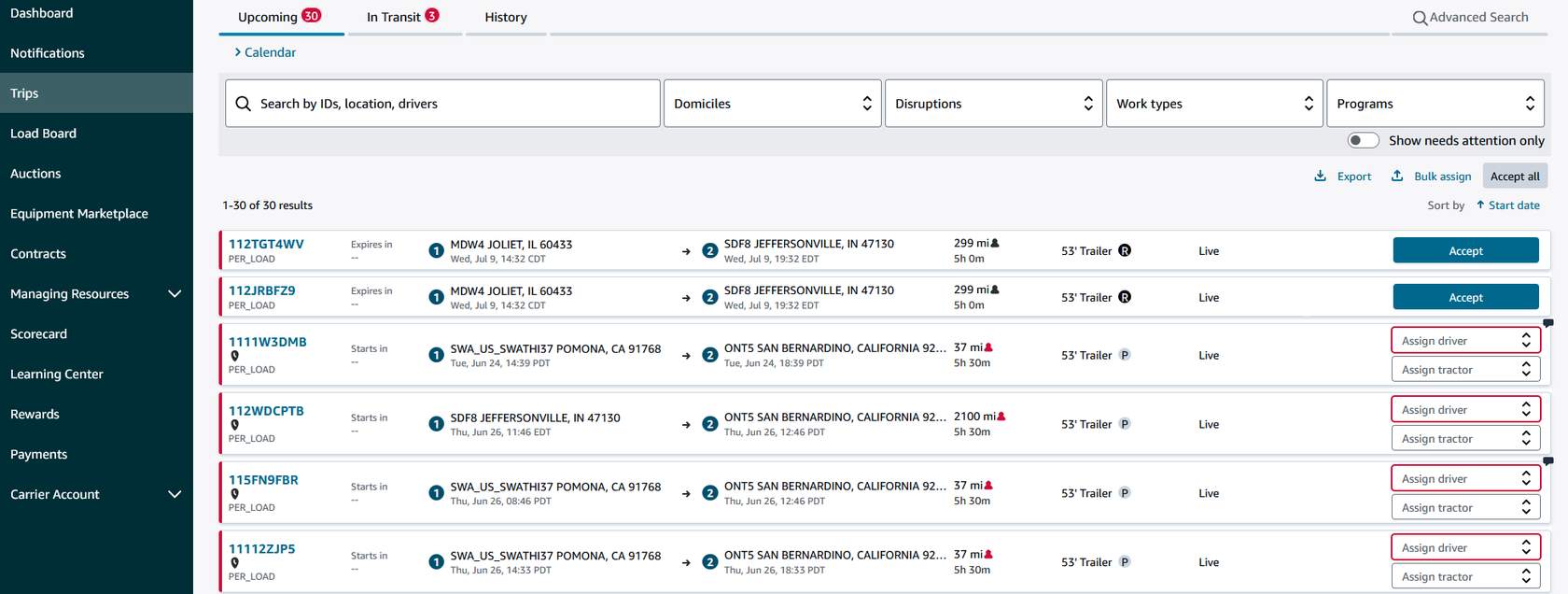
Select from a list of eligible tractors.
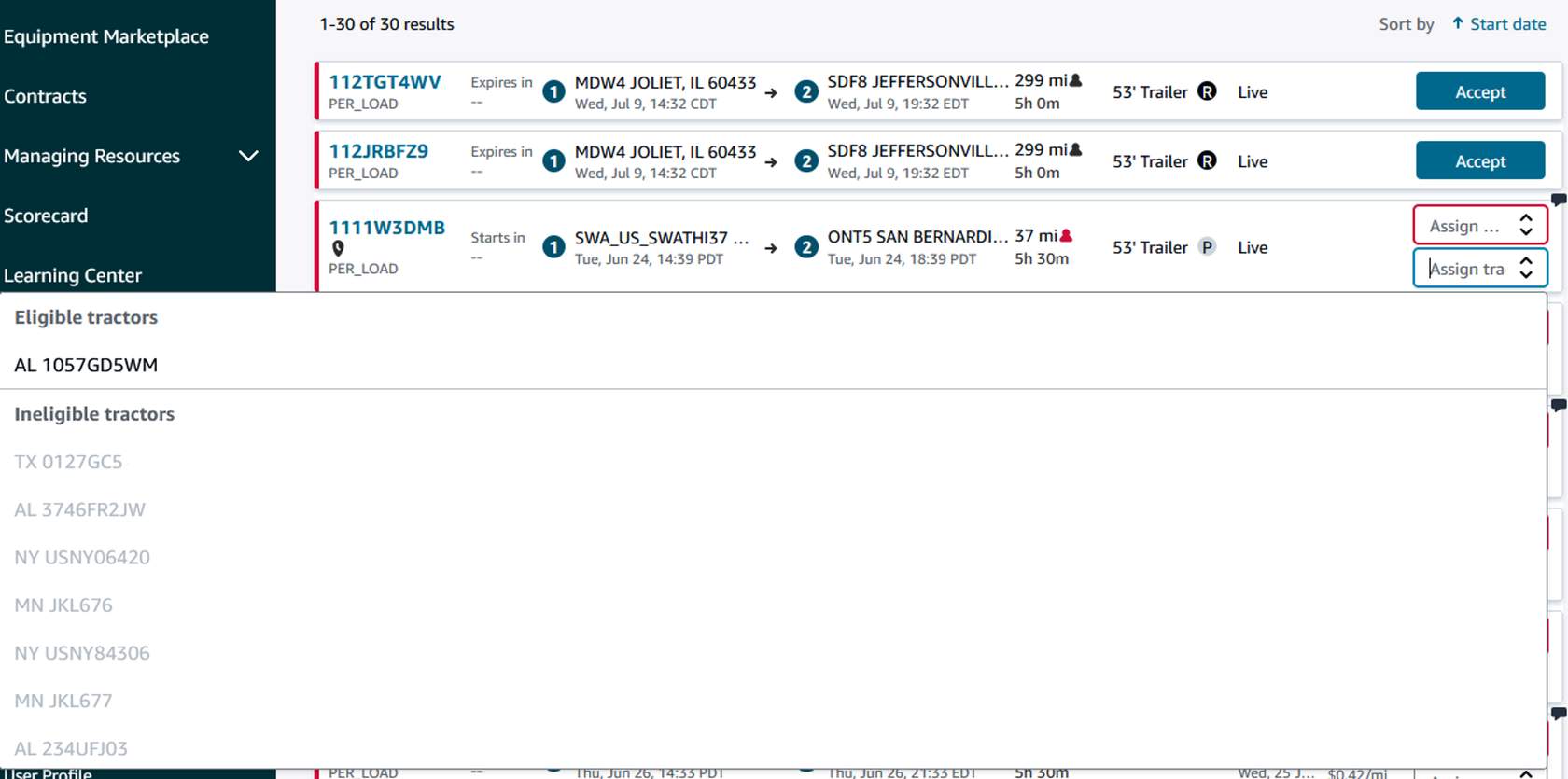
If you don’t see the asset you’re looking for, navigate to your Assets page to check its status or add it.
We’re rolling out changes to the Assets page, assigning assets to trips, and yard rejections from arriving with an unverified asset on a carrier-by-carrier basis. Your company might not experience yard rejections just yet, but we’ll let you know when to expect them.
It’s important to assign the correct asset to a trip to avoid Amazon yard rejection.
Once your driver arrives at an Amazon yard, as part of check-in process, we will validate the identity of the asset that arrived at the gate by reading the license plate (LP) number.
Please note:
Note: Rejections due to unverified assets can impact your Relay Performance Score. They will follow standard acceptance score grading; the closer to scheduled arrival time, the greater the impact. Learn more in the Acceptance and Rejections Course.